> For the complete documentation index, see [llms.txt](https://docs.vega365.com/llms.txt). Markdown versions of documentation pages are available by appending `.md` to page URLs; this page is available as [Markdown](https://docs.vega365.com/redundancy-management-framework/user-manual/configuration-dashboard/enable-the-smartsync-service/smart-sync-service-service-tray/set-service-logon-settings.md).
# Set Service Logon Settings
Log in to SmartSync Service.
{% hint style="info" %}
Setting service logon settings must be performed in the following cases:
1. First-time configuration
2. Change of XProtect architecture between Single Site, Federation, and Independent
3. Change of login credentials
{% endhint %}
To set the SmartSync Service Logon settings, perform the following steps:
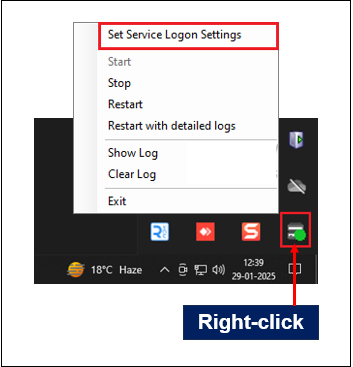
1. Select the **Set Service Logon Settings** option.
Set Service Logon Settings
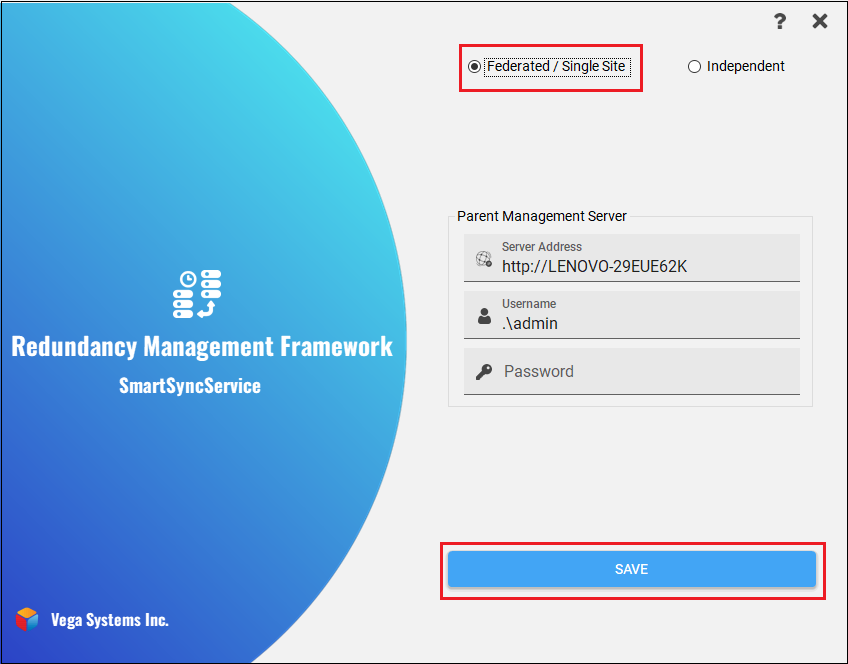
2. If your XProtect deployment is Federated or a Single Site, select **Federated/Single Site;** one of these, enter the credentials and click **Save**.
{% hint style="info" %}
If your site is **Federated,** enter credentials for the parent management server.
{% endhint %}
Federated/Single Site Login Screen
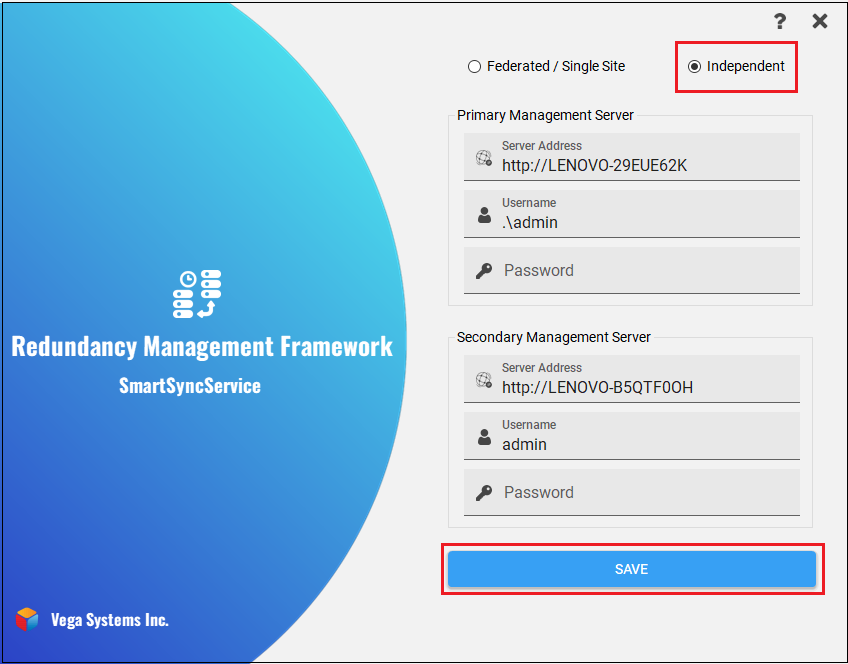
3. Otherwise, if you have independent XProtect deployments that you wish to synchronize, select **Independent**, enter the credentials, and click **Save**.
Independent Login Screen
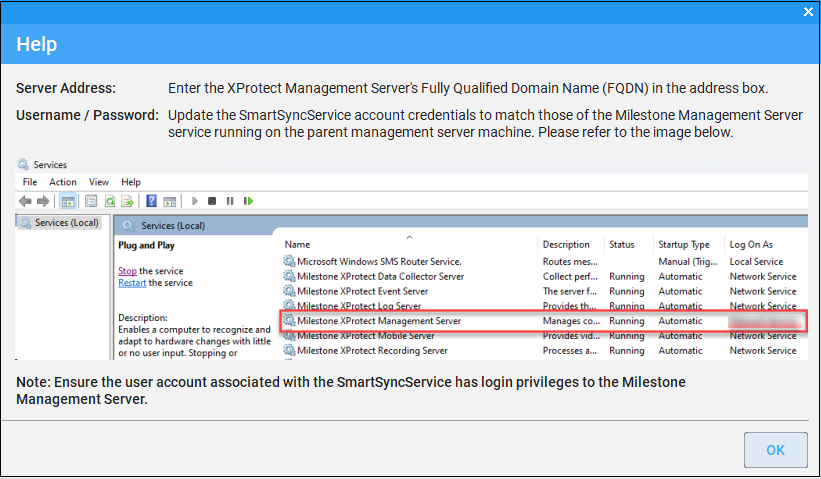
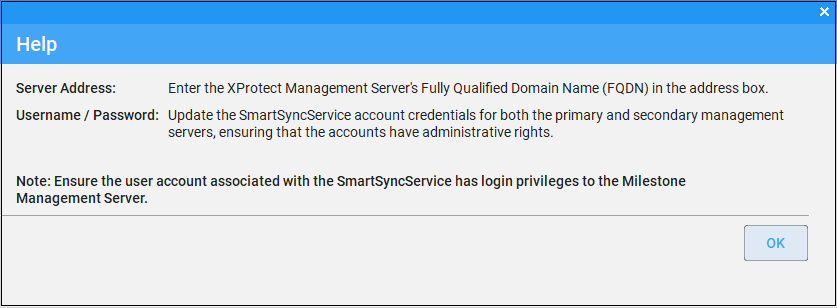
4. Click the **Help** icon to view the Help information.
Help Information—Federated
5. Click the **Help** icon to view the Help information.
Help Information—Independent
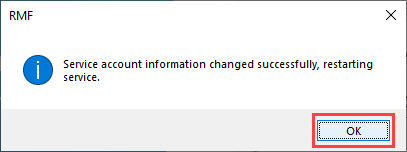
6. Click **OK** on the confirmatory dialog box—the SmartSync service restarts.
Confirmatory Dialog Box
{% hint style="info" %}
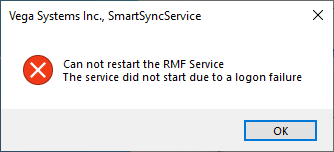
**Note:** Please ensure that you enter the correct login credentials. Otherwise, the SmartSync service will not start, and the following error message will be displayed.
{% endhint %}