> For the complete documentation index, see [llms.txt](https://docs.vega365.com/llms.txt). Markdown versions of documentation pages are available by appending `.md` to page URLs; this page is available as [Markdown](https://docs.vega365.com/redundancy-management-framework/user-manual/configuration-dashboard/licensing.md).

# Licensing

Managing your RMF Device Licenses

## Introduction

The **License** block is the control panel for your organisation’s pool of RMF licences. From here you can:

* **Assign licences** – Allocate free licences to newly added cameras or other devices.
* **Release licences** – Recover licences from devices that have been decommissioned or no longer need redundancy.
* **Re-balance licences** – Shift licences between devices.

{% hint style="success" %}
Note:&#x20;

1. Device licenses are manually assignable only in the Back-Up mode.&#x20;
2. Devices are auto-licensed in Restore mode if they are present on a secondary recorder and absent from the corresponding primary recorder, provided the mapping is one-to-one and licenses are available.
3. A camera must be part of a device group for an RMF license to be assignable to it.
   {% endhint %}

## Prerequisite

Complete [Storage Linking](https://docs.vega365.com/redundancy-management-framework/user-manual/configuration-dashboard/storage-linking.md).

## Assign Licenses

Perform the following steps to assign licenses:

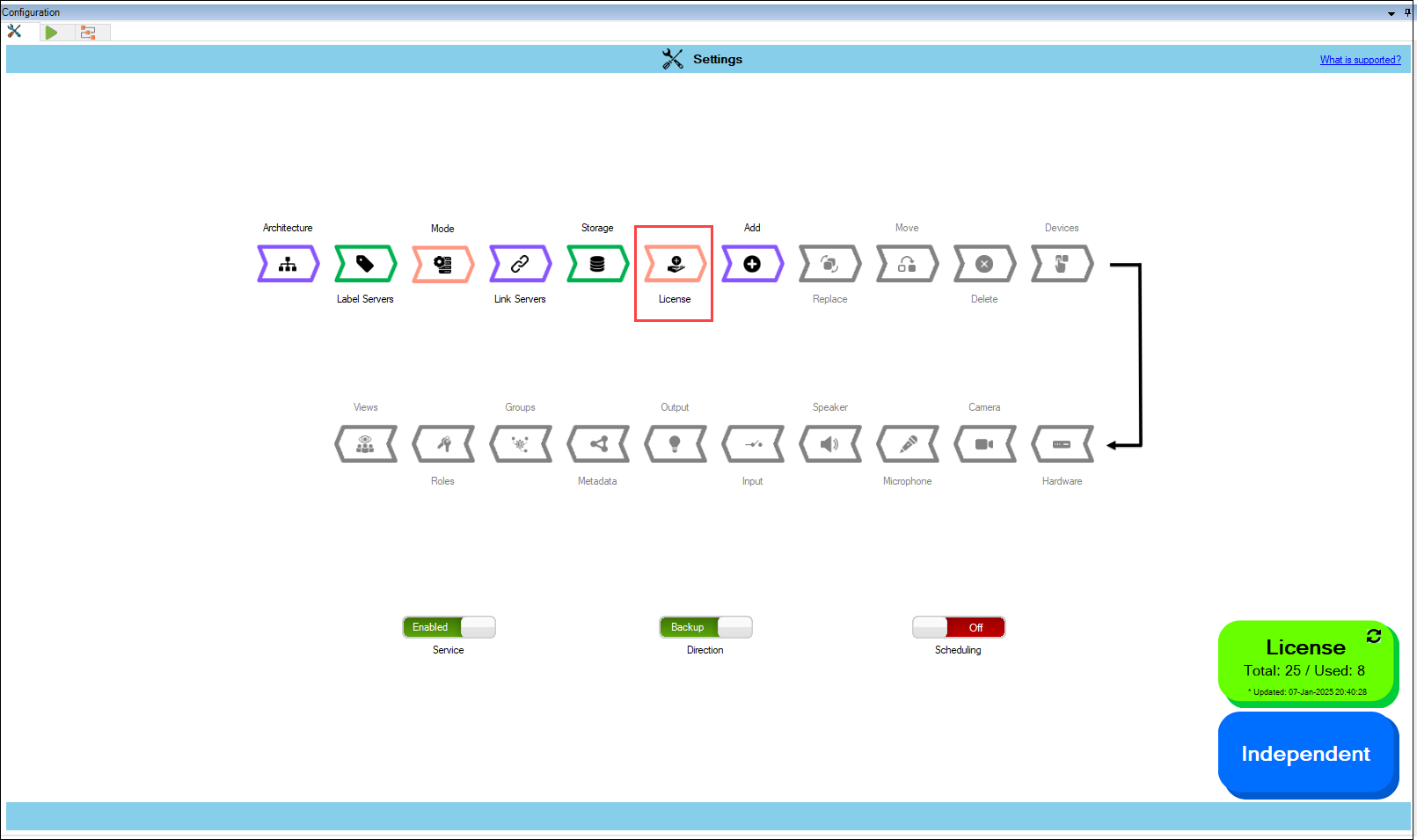
1. Click the **License** block.

<figure><img src="https://content.gitbook.com/content/K95oxUATgzuZZ2VhRoDw/blobs/wQo8oYAc4xYBaXiS486c/License.png" alt=""><figcaption><p>License Option</p></figcaption></figure>

{% hint style="success" %}
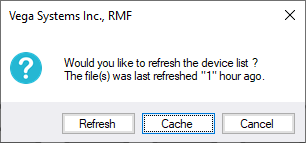
**Step Result:** The confirmatory dialog box appears. Select **Refresh** to log in and retrieve the latest device list, or choose **Cache** to continue configuration with the previously fetched device list. The **Cache** option saves time at large installations.
{% endhint %}

<figure><img src="https://content.gitbook.com/content/K95oxUATgzuZZ2VhRoDw/blobs/7x3ShCVgreoSJ3bJcYfu/cache.png" alt=""><figcaption><p>Refresh/Cache Option</p></figcaption></figure>

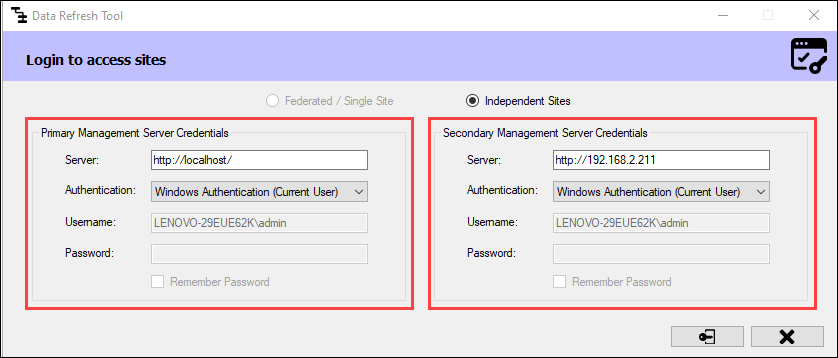
a. If Refresh is chosen for an **Independent** architecture, the following screen appears:

<figure><img src="https://content.gitbook.com/content/K95oxUATgzuZZ2VhRoDw/blobs/mZgF3Gnap2hdNXDr2oTn/Login.png" alt=""><figcaption><p>Login Screen—Independent</p></figcaption></figure>

{% hint style="info" %}
Note: You must log in with administrator privileges.
{% endhint %}

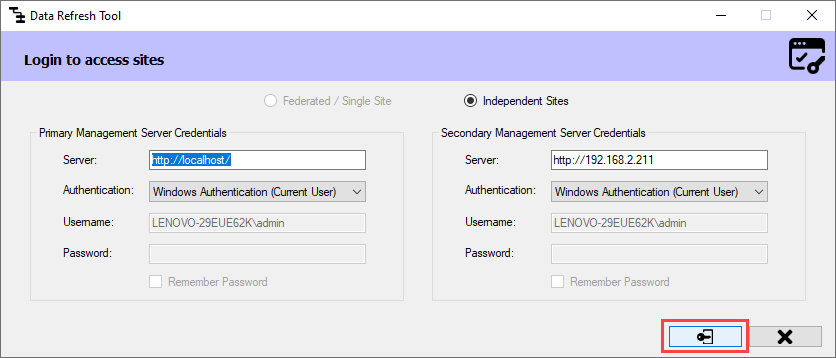
Simply click **Connect** at the bottom right corner of the screen to continue.

<figure><img src="https://content.gitbook.com/content/K95oxUATgzuZZ2VhRoDw/blobs/iCu8I43e2gRLW6QTbPv3/Connect.png" alt=""><figcaption><p>Connect Option—Independent</p></figcaption></figure>

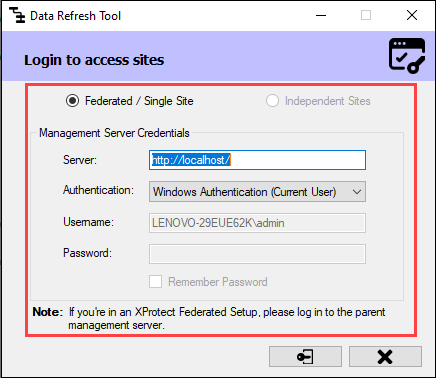
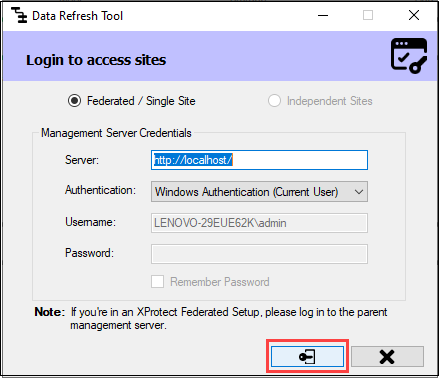
b. If Refresh is chosen in a **Federated/Single Site**, the following screen appears:

<figure><img src="https://content.gitbook.com/content/K95oxUATgzuZZ2VhRoDw/blobs/xqCxYCo048qXfF4Xr9Fr/Login2.png" alt=""><figcaption><p>Login Screen—Federated/Single Site</p></figcaption></figure>

{% hint style="info" %}
Note: If your XProtect architecture is **Federated**, log in to the **Parent Management Server**.
{% endhint %}

Click **Connect** at the bottom right corner of the screen to continue.

<figure><img src="https://content.gitbook.com/content/K95oxUATgzuZZ2VhRoDw/blobs/t7X68bGhJ8duskHlRJup/Connect3.png" alt=""><figcaption><p>Connect Option—Federated/Single Site</p></figcaption></figure>

{% hint style="success" %}
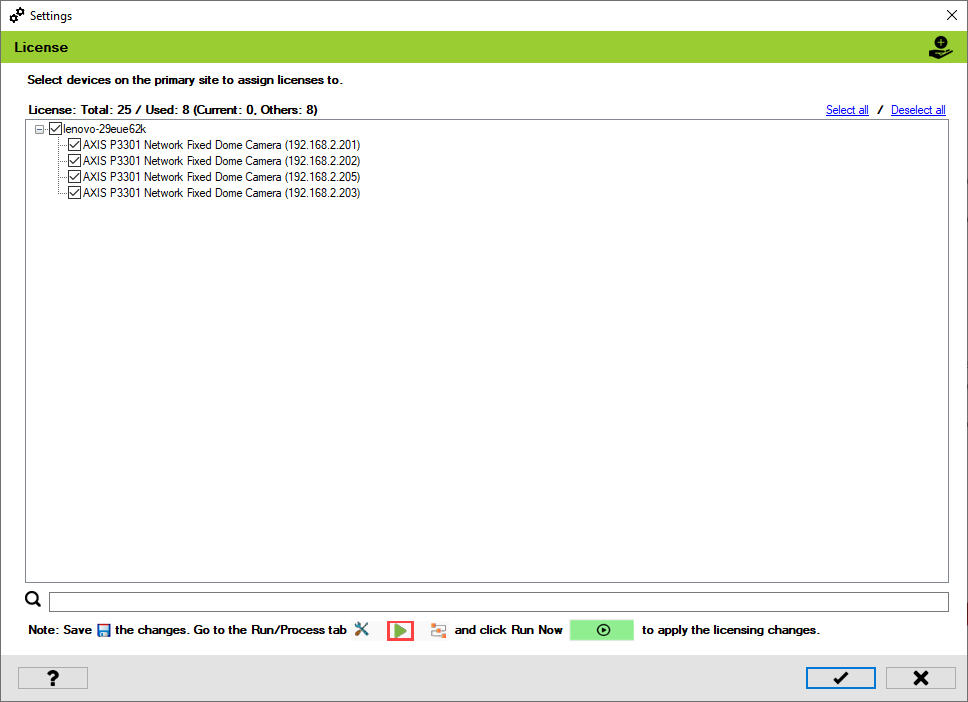
**Step Result:** The License screen appears. It lists all devices available on the Primary server. The total number of RMF licenses purchased for the current Milestone Software License Code is the total license count.&#x20;
{% endhint %}

<figure><img src="https://content.gitbook.com/content/K95oxUATgzuZZ2VhRoDw/blobs/NdZnqx3uFvMyqXrCdUMr/Licensescreen.png" alt=""><figcaption><p>License Screen</p></figcaption></figure>

{% hint style="info" %}
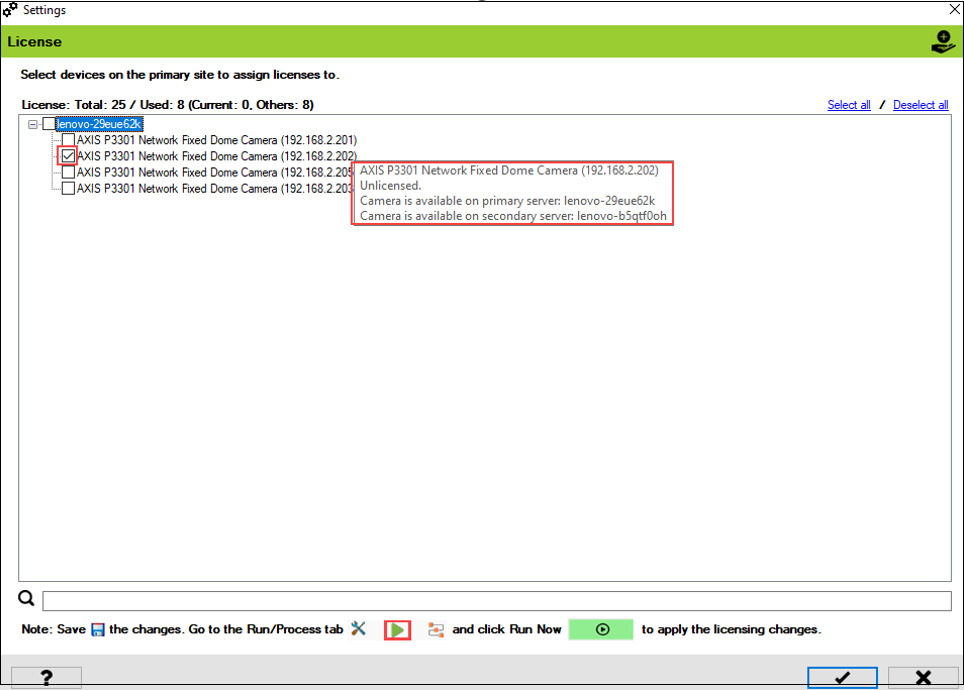
**Note:** Hover over a camera to display the associated primary and secondary recorders where the camera is available.
{% endhint %}

{% hint style="info" %}
**Note:** If a camera is available on more than one recorder in the primary and/or secondary or is not available in any device group, it will be grayed out, and a license cannot be assigned to it.
{% endhint %}

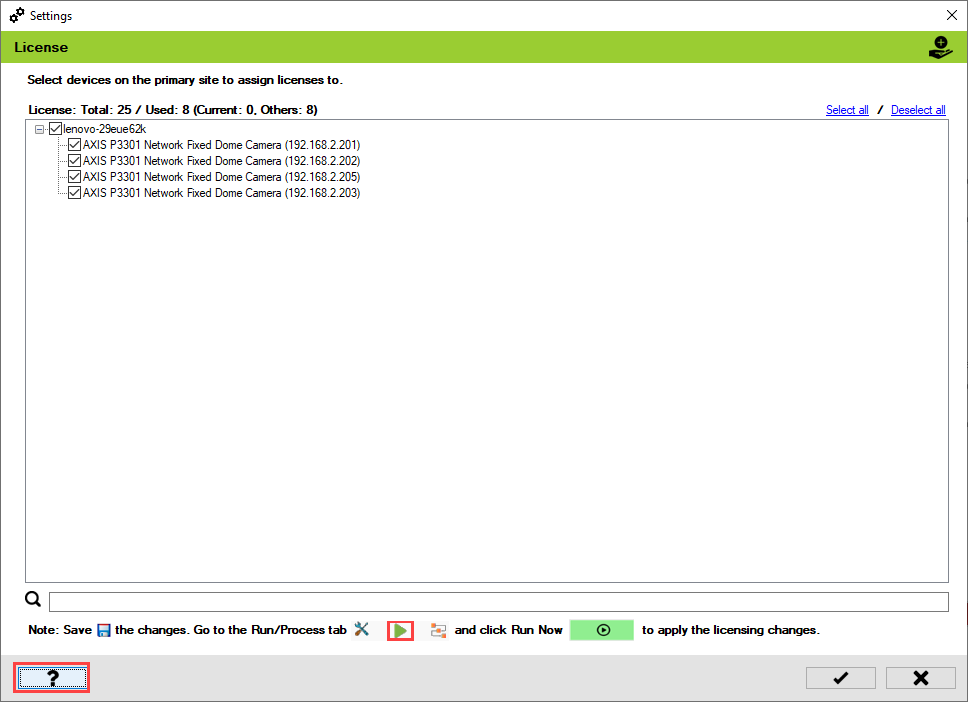
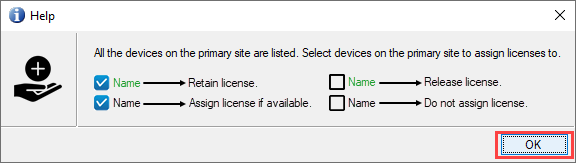
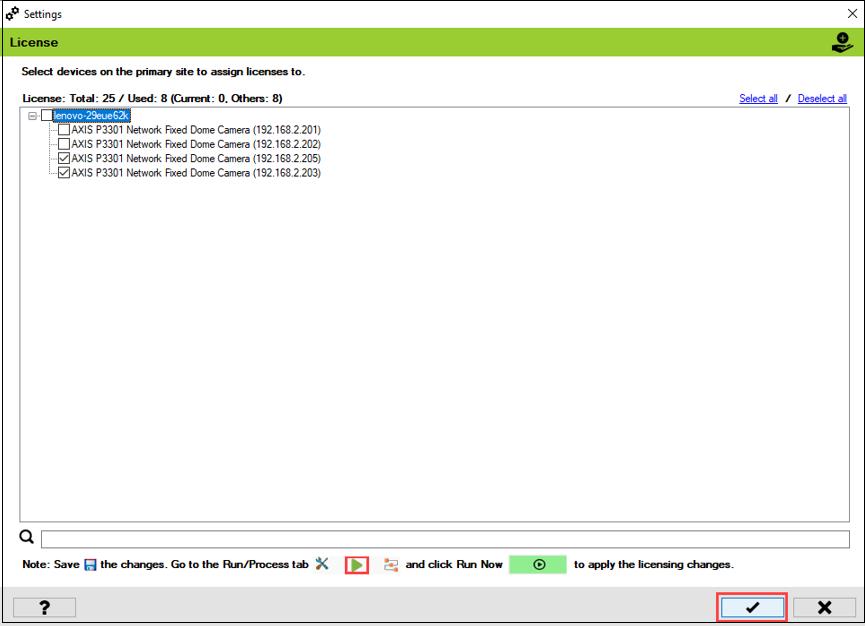
2. Select devices on the Primary site to assign licenses. Click the **Help** icon for additional information.

<figure><img src="https://content.gitbook.com/content/K95oxUATgzuZZ2VhRoDw/blobs/ZZUIXMhXVgI9elRFY8xZ/Help.png" alt=""><figcaption><p>Help Icon</p></figcaption></figure>

<figure><img src="https://content.gitbook.com/content/K95oxUATgzuZZ2VhRoDw/blobs/qesPfTToxdIj9pxGENB7/Helpinfo.png" alt=""><figcaption><p>Help Information</p></figcaption></figure>

The following are some license tasks that can be performed.

* Assign License if Available
* Do not Assign a License&#x20;
* Retain license
* Release license

### Assign License if Available

The camera name in black font denotes that it is unlicensed. Select the device check box to assign licenses to it.&#x20;

<figure><img src="https://content.gitbook.com/content/K95oxUATgzuZZ2VhRoDw/blobs/DWWhOd6o3UBgTjC6LYwg/Assign.png" alt=""><figcaption><p>Assign License</p></figcaption></figure>

### Do Not Assign a License Even if Available

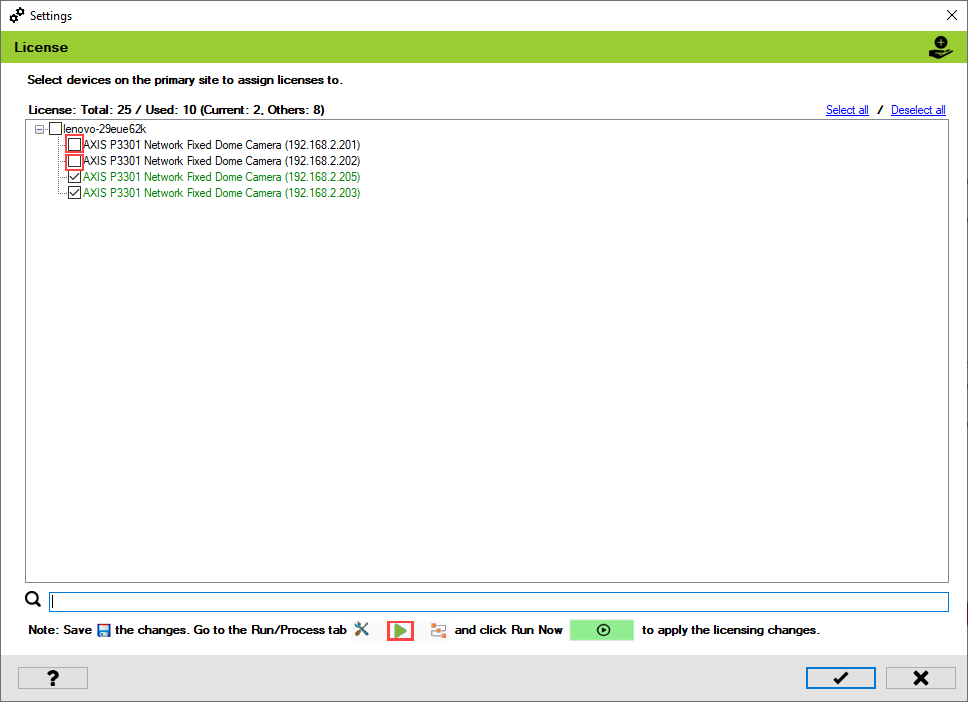
Clearing the check box for a device shown in a black font will keep it unlicensed.

{% hint style="info" %}
**Note:** The black font next to the check box denotes that the device is unlicensed.
{% endhint %}

<figure><img src="https://content.gitbook.com/content/K95oxUATgzuZZ2VhRoDw/blobs/hsPdm4CsHqTCOidrSdi3/Unassign.png" alt=""><figcaption><p>Do not Assign a License</p></figcaption></figure>

### Retain License

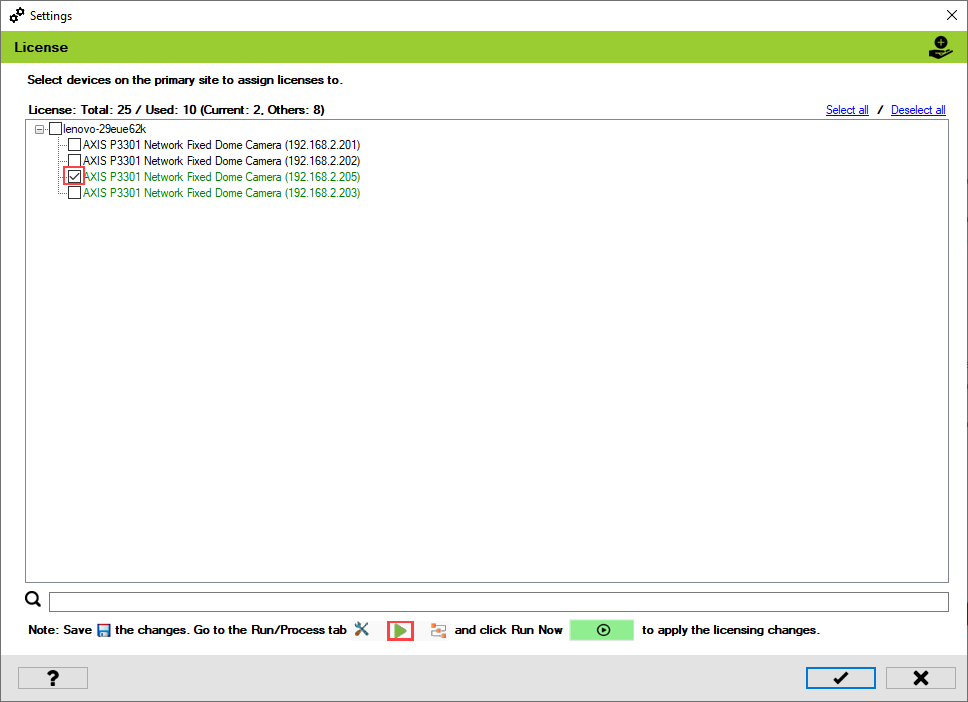
Maintaining a checked box for a device whose name is displayed in green font will keep the device licensed.

{% hint style="info" %}
**Note:** The green color font denotes that the device is currently licensed.
{% endhint %}

<figure><img src="https://content.gitbook.com/content/K95oxUATgzuZZ2VhRoDw/blobs/PJZx54BiqaoHPHfBApT6/retain.png" alt=""><figcaption><p>Retain License</p></figcaption></figure>

### Release License

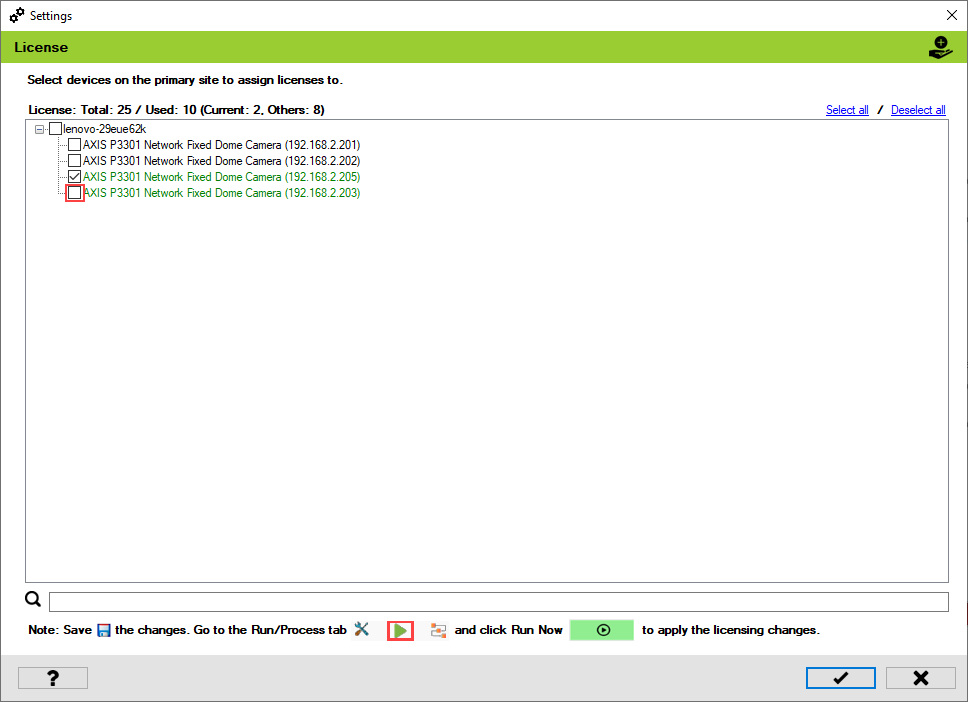
To release the license of an already licensed camera, clear its check box.

{% hint style="info" %}
**Note:** Green font indicates that the device is currently licensed.
{% endhint %}

<figure><img src="https://content.gitbook.com/content/K95oxUATgzuZZ2VhRoDw/blobs/QN8KelCoRDGSEW0X4heA/release.png" alt=""><figcaption><p>Release License</p></figcaption></figure>

3. Click the **Save** icon to save the changes.

<figure><img src="https://content.gitbook.com/content/K95oxUATgzuZZ2VhRoDw/blobs/qB8lBcKf94D4a5LnLiBs/save.png" alt=""><figcaption><p>Save Icon</p></figcaption></figure>

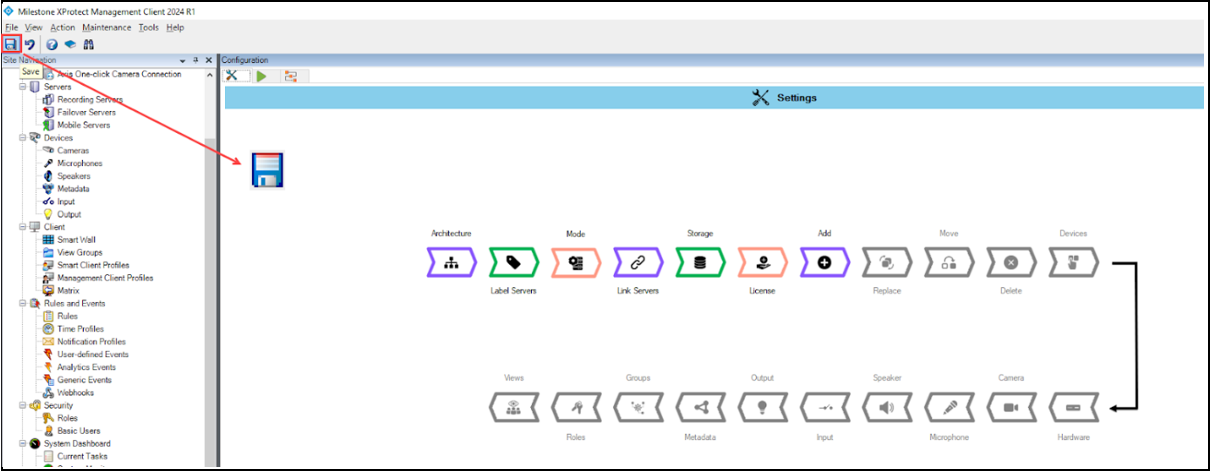
4. Click **Save** in the Milestone toolbar to save the changes.

<figure><img src="https://content.gitbook.com/content/K95oxUATgzuZZ2VhRoDw/blobs/0NXr5uQATDo66zJT5vYe/MilestoneSave.png" alt=""><figcaption><p>Save Icon—Milestone Toolbar</p></figcaption></figure>

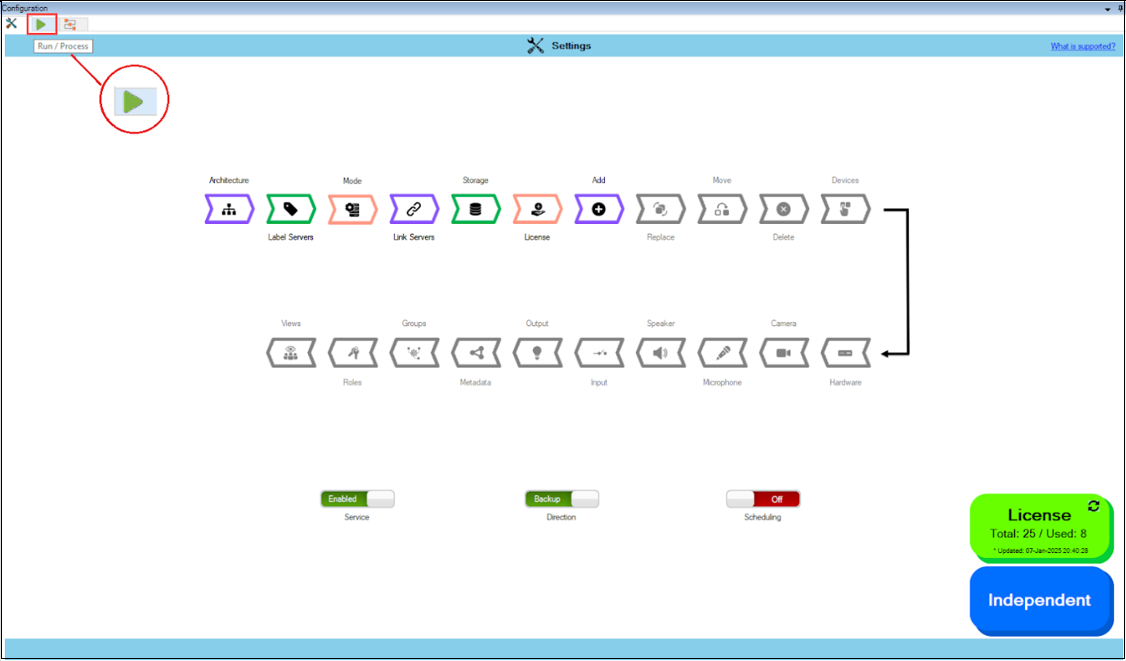
5. To apply licensing changes immediately, click the **Run/Process** tab at the top left corner.

<figure><img src="https://content.gitbook.com/content/K95oxUATgzuZZ2VhRoDw/blobs/Bz6a7spX7Z2OrQHeQXdz/Run-Process.png" alt=""><figcaption><p>Run/Process</p></figcaption></figure>

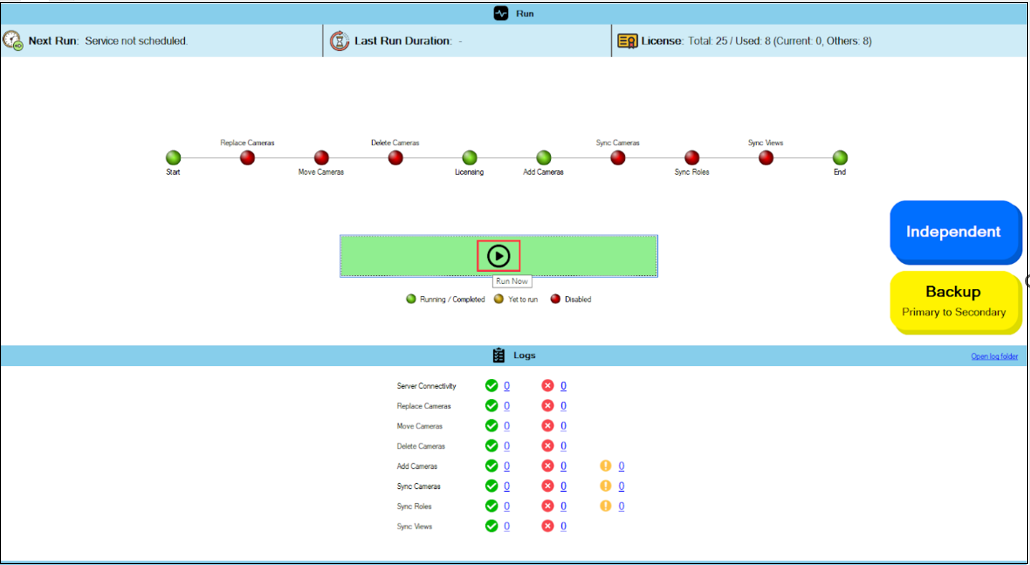
6. Click the **Run Now** icon to commit license changes immediately. Or, if the service is scheduled, the license changes are committed during its next run.

<figure><img src="https://content.gitbook.com/content/K95oxUATgzuZZ2VhRoDw/blobs/JyHEcfzaVe6BwcvvPzTc/Run%20Now.png" alt=""><figcaption><p>Run Now Option</p></figcaption></figure>

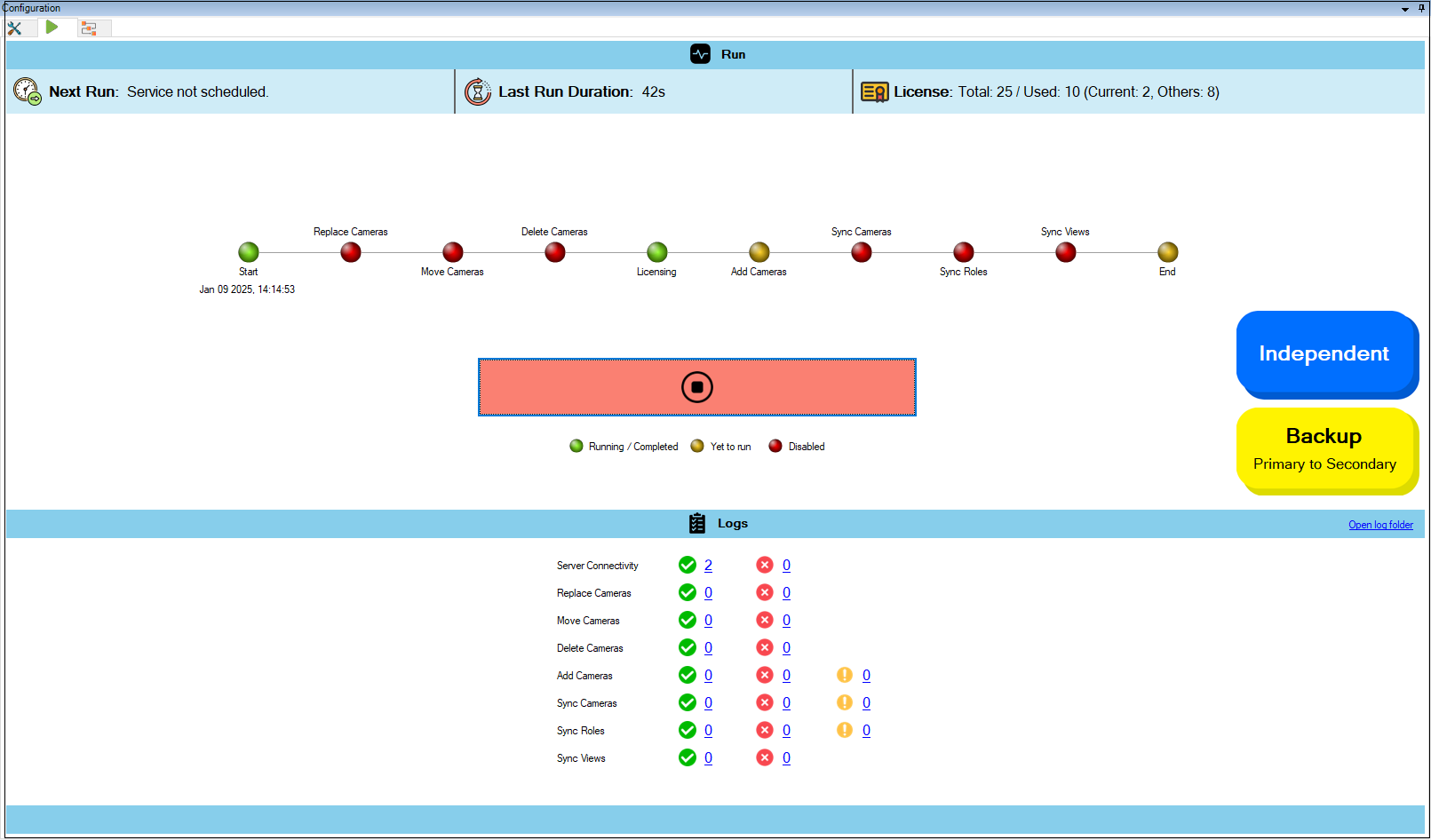
7. A process run begins with the following screen.&#x20;

{% hint style="info" %}
**Note:** A blinking LED denotes that the stage it represents is in progress. A green LED indicates that the stage is complete. An amber LED denotes that the stage is pending completion and has not started, while a red LED denotes that the stage is disabled. &#x20;
{% endhint %}

<figure><img src="https://content.gitbook.com/content/K95oxUATgzuZZ2VhRoDw/blobs/h8iUrYTOYyTyq1NsAB2F/Licenseblink.png" alt=""><figcaption><p>Synchonization Run in Progress</p></figcaption></figure>

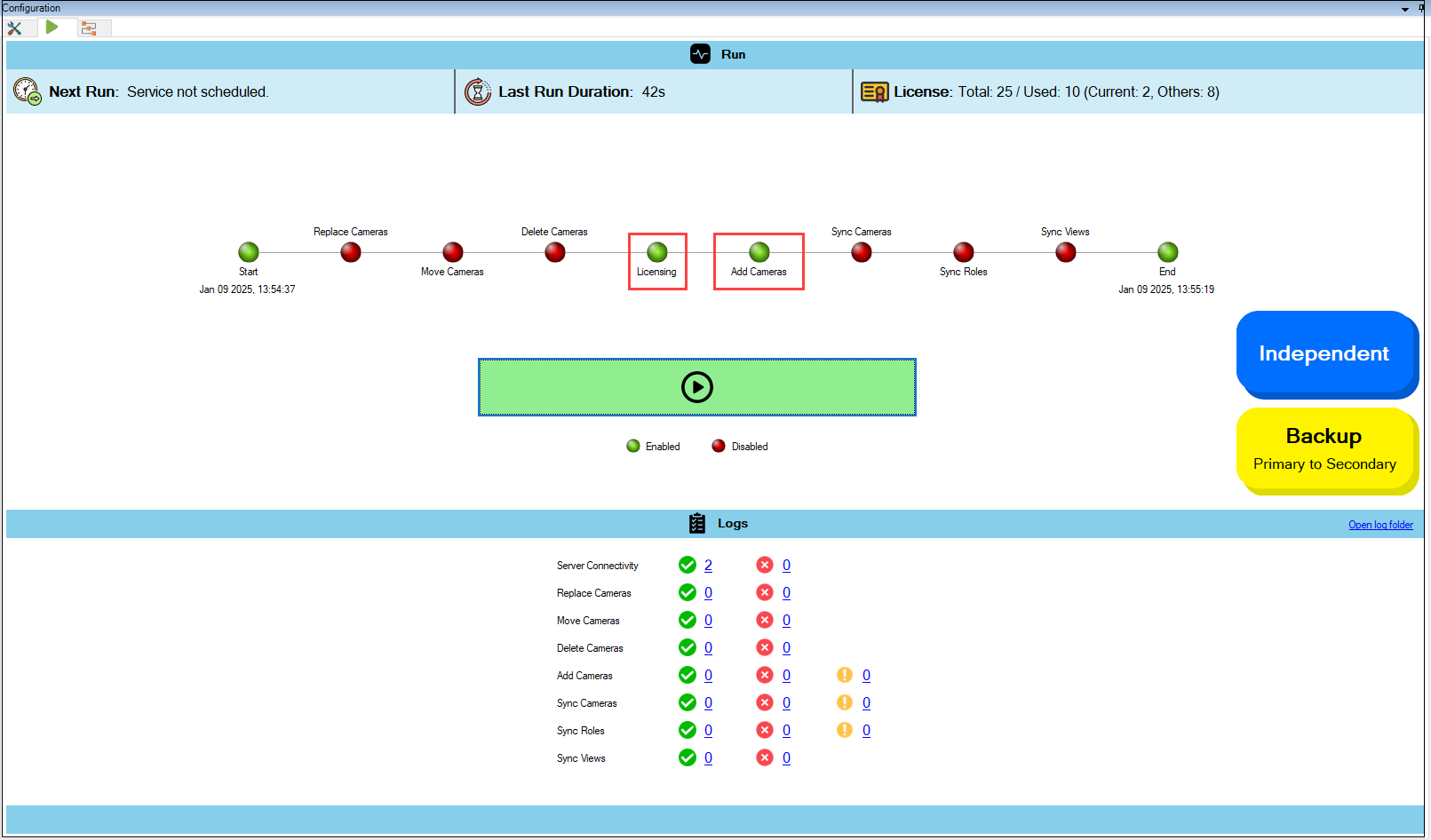
8. When the process is completed, all amber lights should be green, and one cannot see blinking LEDs.

<figure><img src="https://content.gitbook.com/content/K95oxUATgzuZZ2VhRoDw/blobs/wq0dw8VitAlJYx7ZmoSV/License%20complete.png" alt=""><figcaption><p>Process Run Completion </p></figcaption></figure>

{% hint style="info" %}
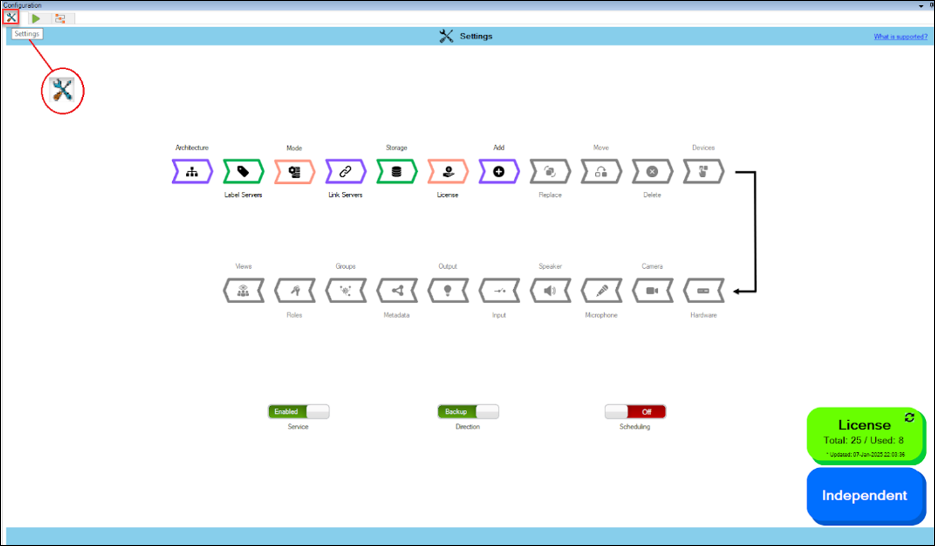
**Note:** To verify that licenses have been assigned, please navigate to the **Settings** tab and click the **License** block.
{% endhint %}

<figure><img src="https://content.gitbook.com/content/K95oxUATgzuZZ2VhRoDw/blobs/4VCr2cM8dJiysXgudaCM/Settings.png" alt=""><figcaption><p>Settings Tab</p></figcaption></figure>

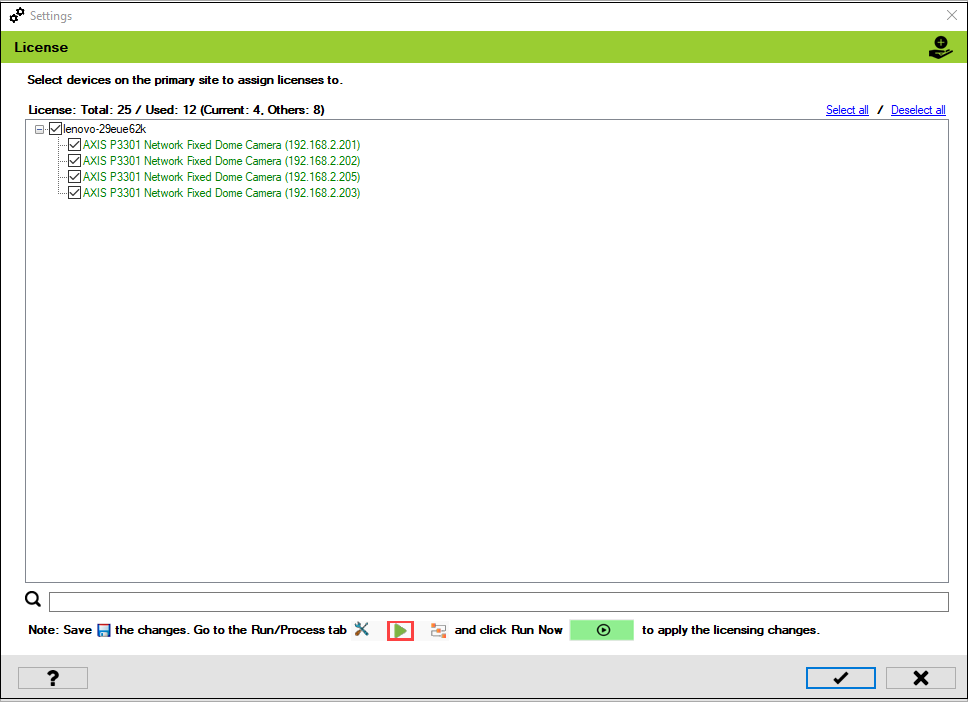
The licenses for the selected cameras are allocated in the picture below. The green font denotes that the cameras are licensed.

<figure><img src="https://content.gitbook.com/content/K95oxUATgzuZZ2VhRoDw/blobs/ViLxIdY21OTri1wLjqat/Licensegreen.png" alt=""><figcaption><p>License Allocation Completed</p></figcaption></figure>