> For the complete documentation index, see [llms.txt](https://docs.vega365.com/llms.txt). Markdown versions of documentation pages are available by appending `.md` to page URLs; this page is available as [Markdown](https://docs.vega365.com/redundancy-management-framework/user-manual/configuration-dashboard/move-camera.md).
# Move Camera
Sync Recorder-to-Recorder Shuffles
## Introduction
When administrators redistribute cameras—say to load-balance traffic, decommission legacy hardware, or tidy up the estate—they typically drag each device from one primary recorder to another. In an active-active setup, if the same move must also occur on the redundant recorders, the **Move Camera** block automates that follow-up step:
* **Backup mode:** A camera moved between **Primary** recorders is moved in lock-step between their linked **Secondary** recorders.
* **Restore mode:** While the DR site is live, any changes made to a secondary are reflected to its one-to-one-linked **Primary**.
{% hint style="success" %}
**Visibility:** The Move Camera block appears **only when Mode = Auto**; in Manual (Map Cameras) mode, you relocate devices on each recorder yourself.
{% endhint %}
## Scope
The feature is limited to RMF-licensed cameras.
## Enable
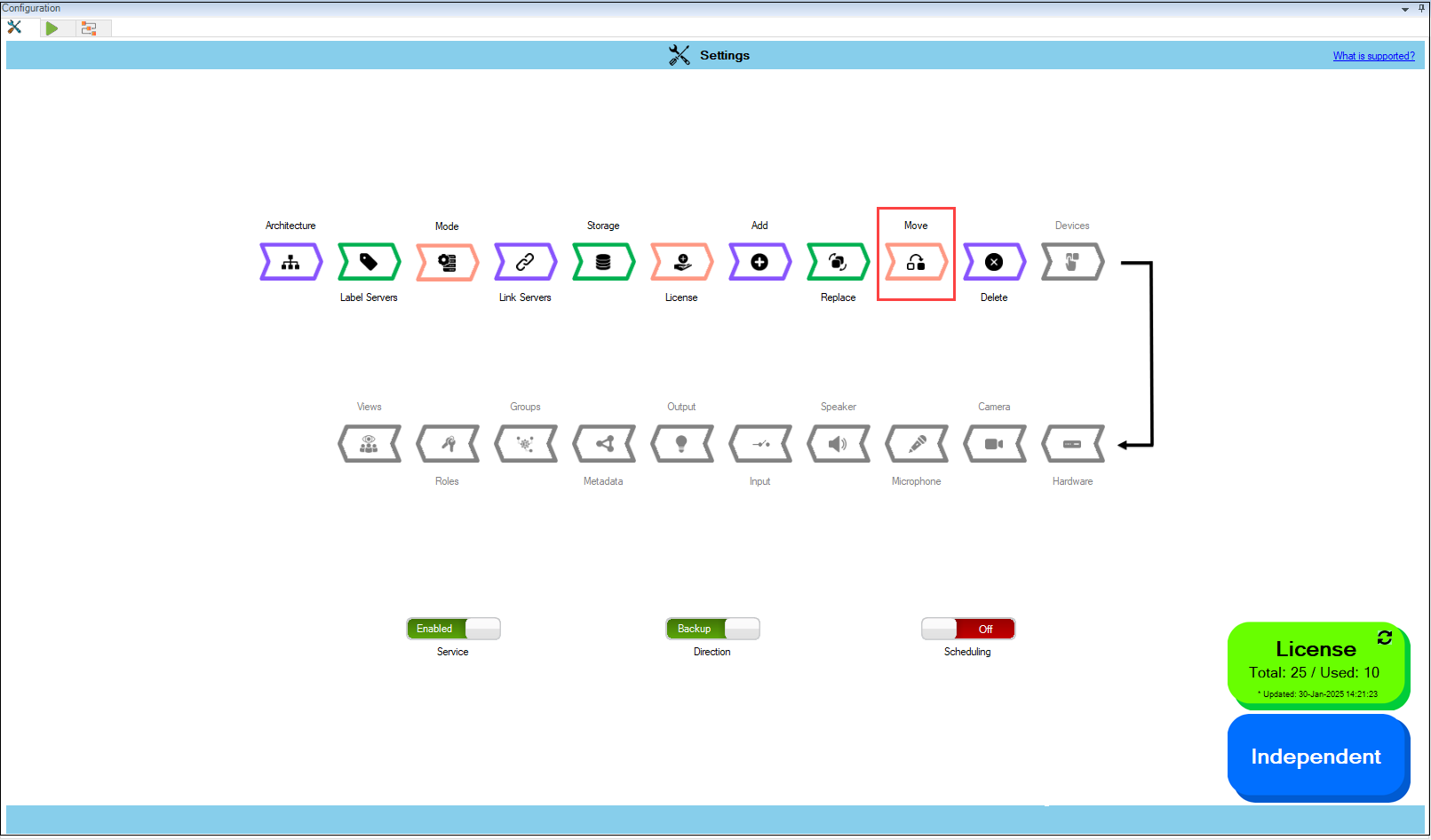
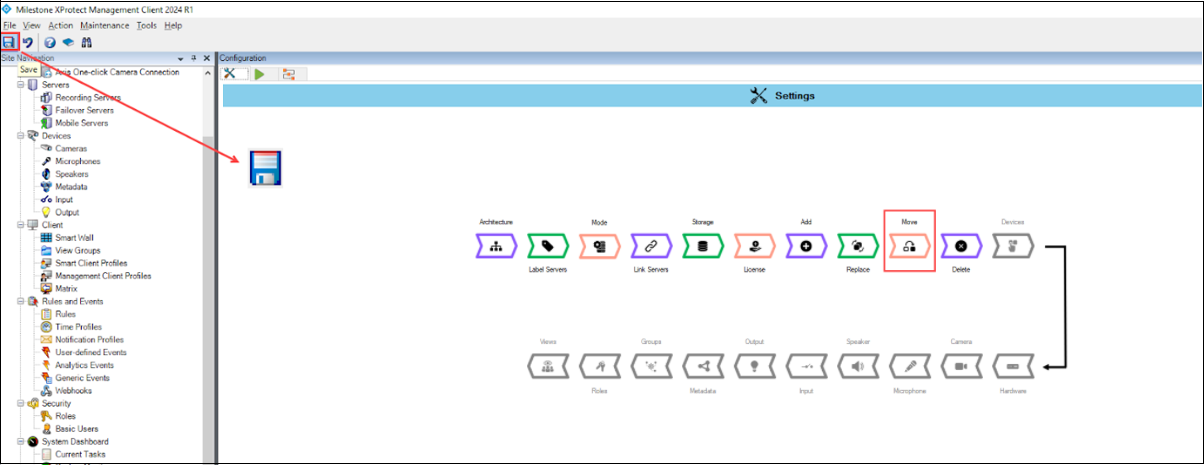
1. Click **Move**.
Move Option
{% hint style="info" %}
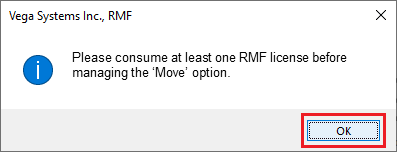
**Note:** The RMF system must utilize and manage at least one license. If not, the following screen will appear. Ensure the cameras are properly licensed before proceeding to the next steps.
{% endhint %}
Move Camera—Note
{% hint style="success" %}
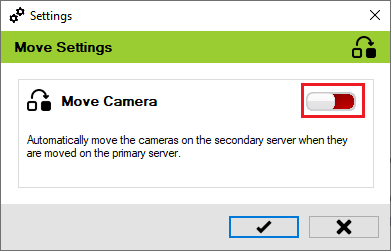
**Step Result:** The **Move Settings** dialog box appears. By default, the **Move Camera** toggle button is disabled.
{% endhint %}
Move Toggle—Disabled
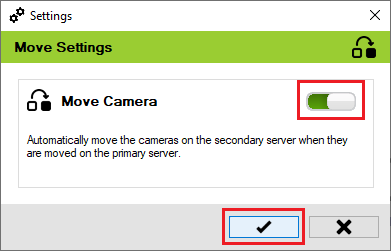
2. Move the toggle button to enable and click the **Save** icon.
Move Toggle—Enabled
3. Click **Save** in the Milestone toolbar to save the changes.