> For the complete documentation index, see [llms.txt](https://docs.vega365.com/llms.txt). Markdown versions of documentation pages are available by appending `.md` to page URLs; this page is available as [Markdown](https://docs.vega365.com/redundancy-management-framework/user-manual/configuration-dashboard/replace-camera.md).
# Replace Camera
One-Click Swap Across Redundant Recorders
## Introduction
When a camera reaches end-of-life, Milestone XProtect allows you to swap it out in place, ensuring all views, rules, and permissions remain intact. In an active-active environment, you would typically have to redo that swap on every redundant recorder. **RMF’s Replace Camera feature does it for you automatically**:
* **Backup mode:** Replacing a camera on the **Primary** recorder instantly triggers the same replacement on the linked **Secondary**.
* **Restore mode:** While you are running from the DR site, a replacement made on the **Secondary** is pushed back to its Primary counterpart.
No manual duplication, no missed mappings—just a seamless hand-off to the new hardware on both sides of the redundant pair.
## Scope
The feature is limited to RMF-licensed cameras.
## How to Enable
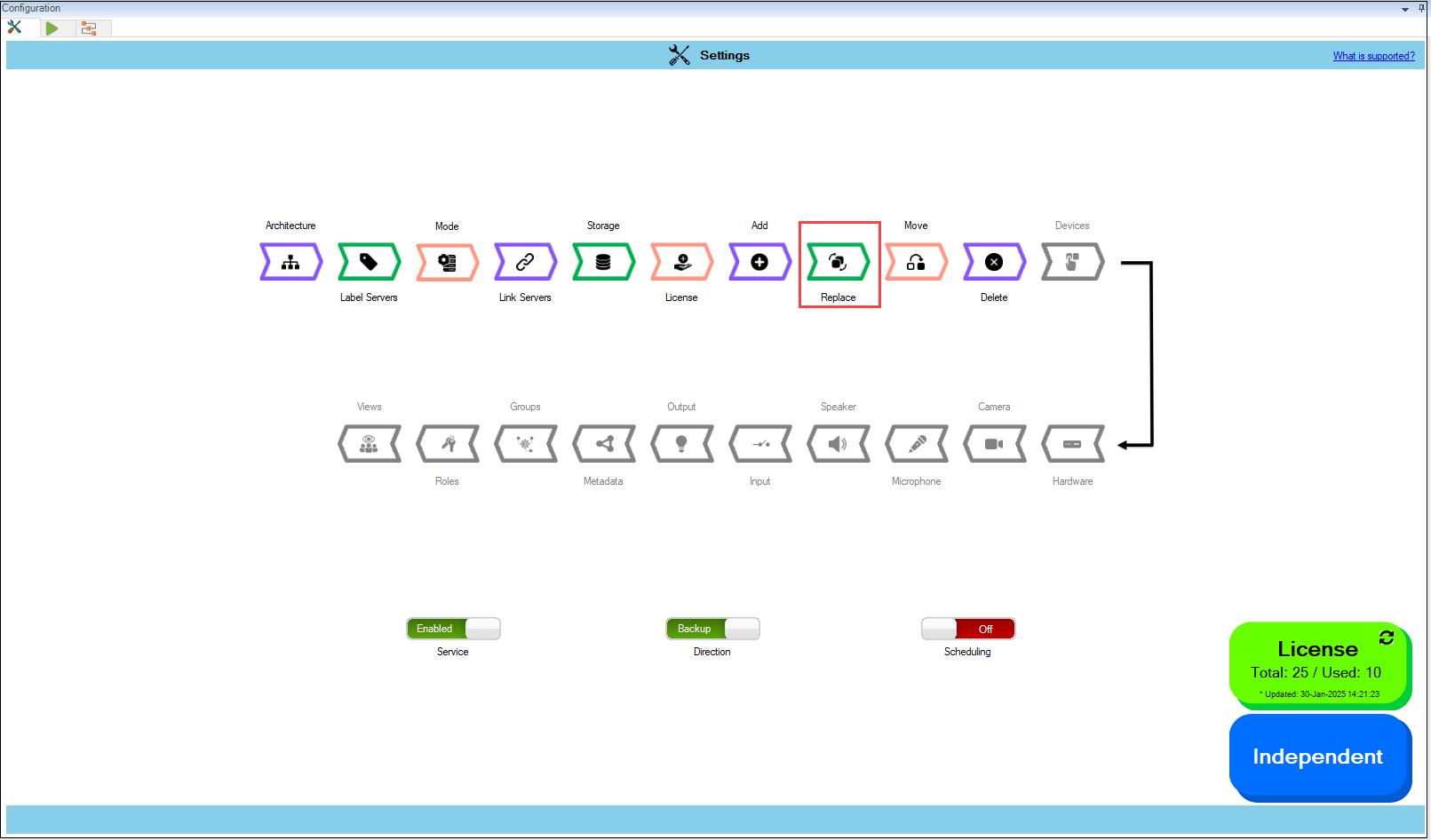
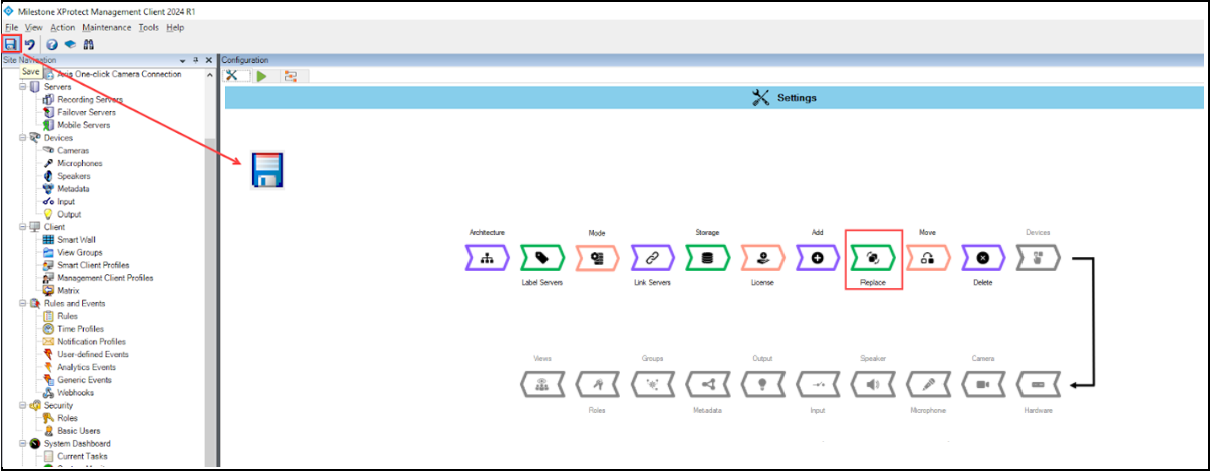
1. Click **Replace**.
Replace Option
{% hint style="info" %}
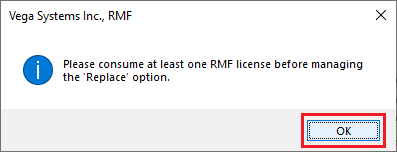
**Note:** The system must consume and manage at least one RMF license. Otherwise, the following screen will appear. Ensure the cameras are licensed before proceeding with the next steps.
{% endhint %}
Replace Camera—Note
{% hint style="success" %}
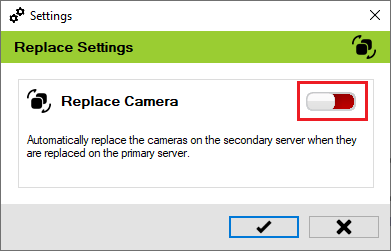
**Step Result:** The **Replace Settings** dialog box appears. The Replace Camera toggle button is turned off by default.
{% endhint %}
Replace Toggle—Disabled
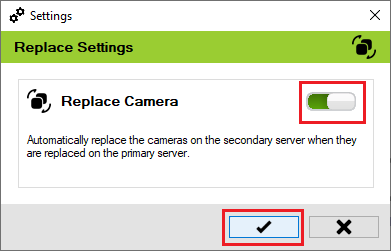
2. Move the toggle button to enable and click the **Save** icon.
Replace Toggle—Enabled
3. Click **Save** in the Milestone toolbar to save the changes.