> For the complete documentation index, see [llms.txt](https://docs.vega365.com/llms.txt). Markdown versions of documentation pages are available by appending `.md` to page URLs; this page is available as [Markdown](https://docs.vega365.com/redundancy-management-framework/user-manual/configuration-dashboard/synchronize-camera.md).

# Synchronize Camera

Synchronize camera level settings provided by Milestone XProtect.

## About

Each hardware device in Milestone can support multiple cameras. Each camera contains many parameters related to stream definitions, PTZ presets, Patrolling, Privacy Masking, and more. This block determines which camera properties will be synchronized by RMF.&#x20;

The settings apply to all cameras within and across all hardware devices.&#x20;

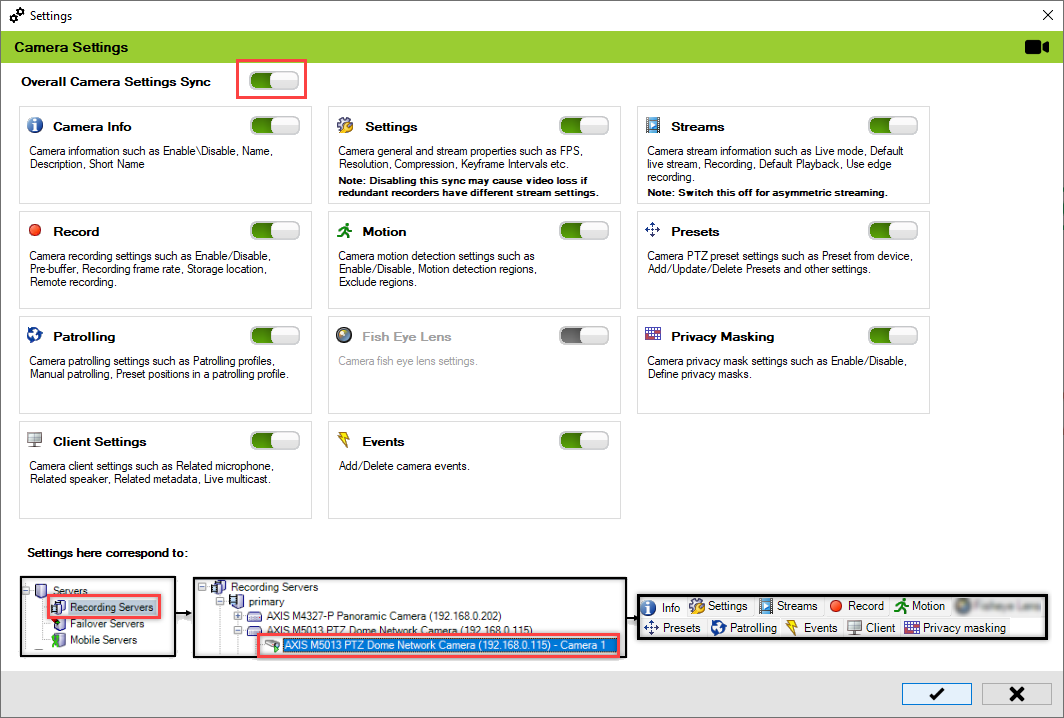
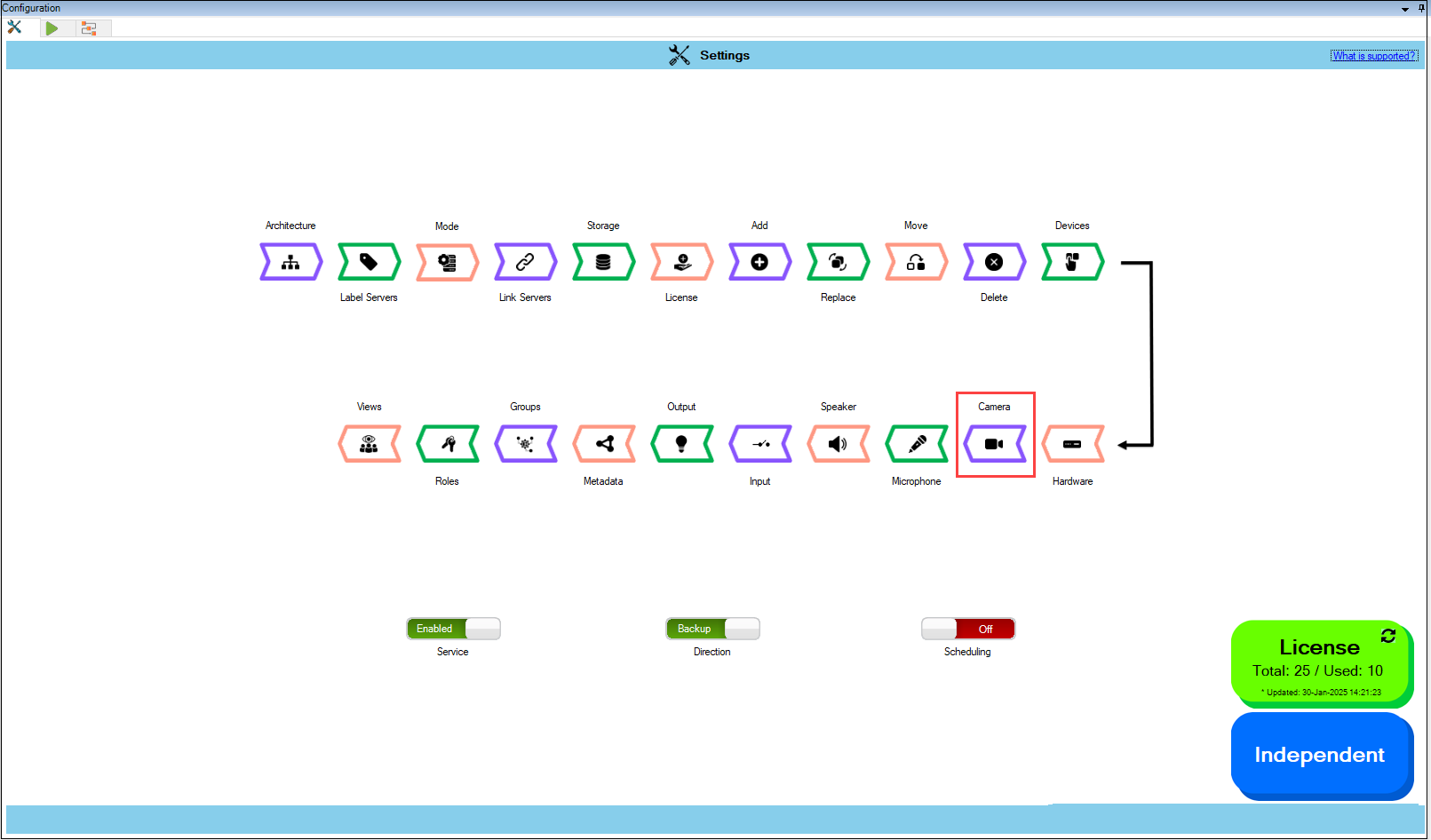
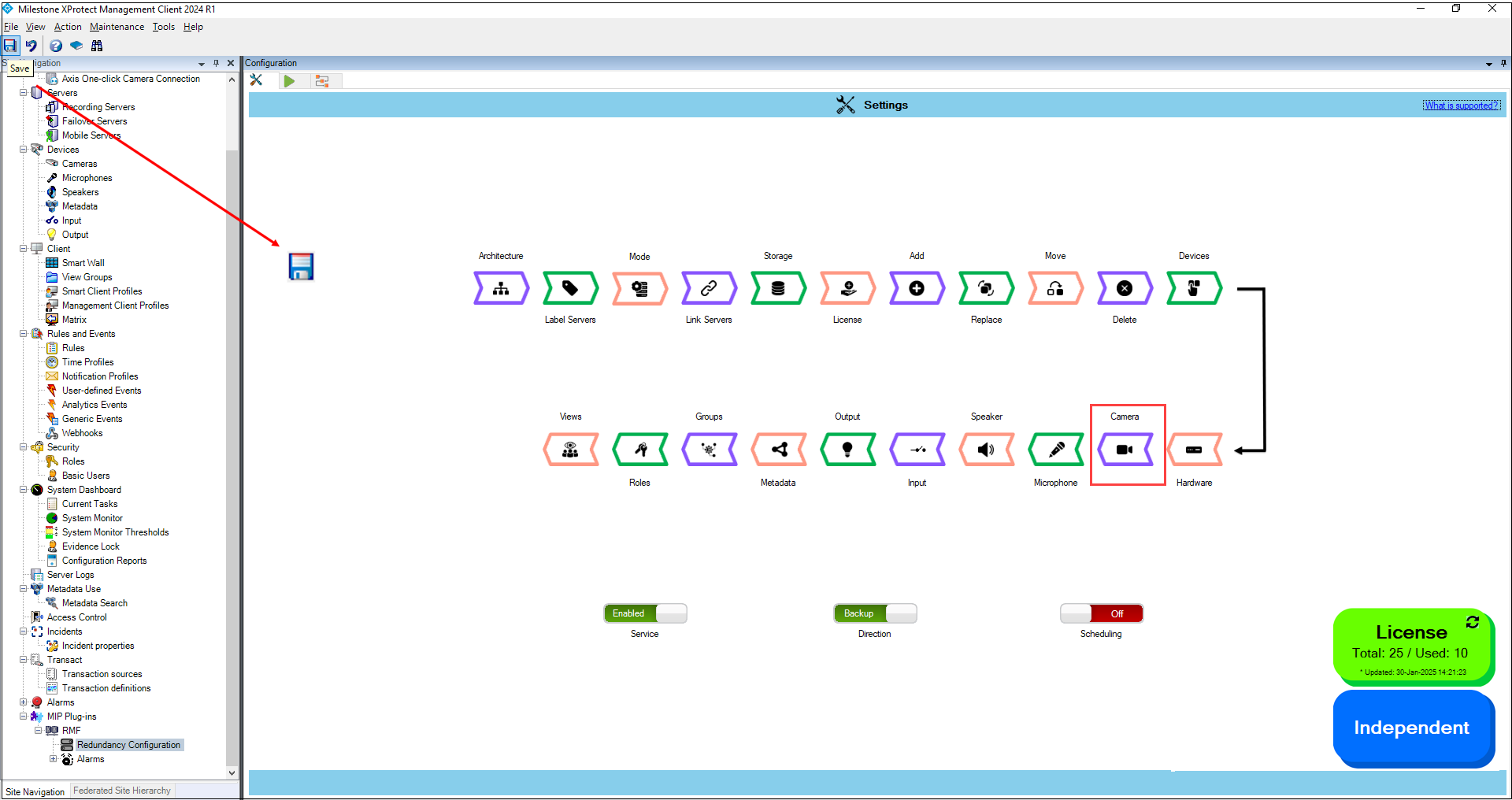
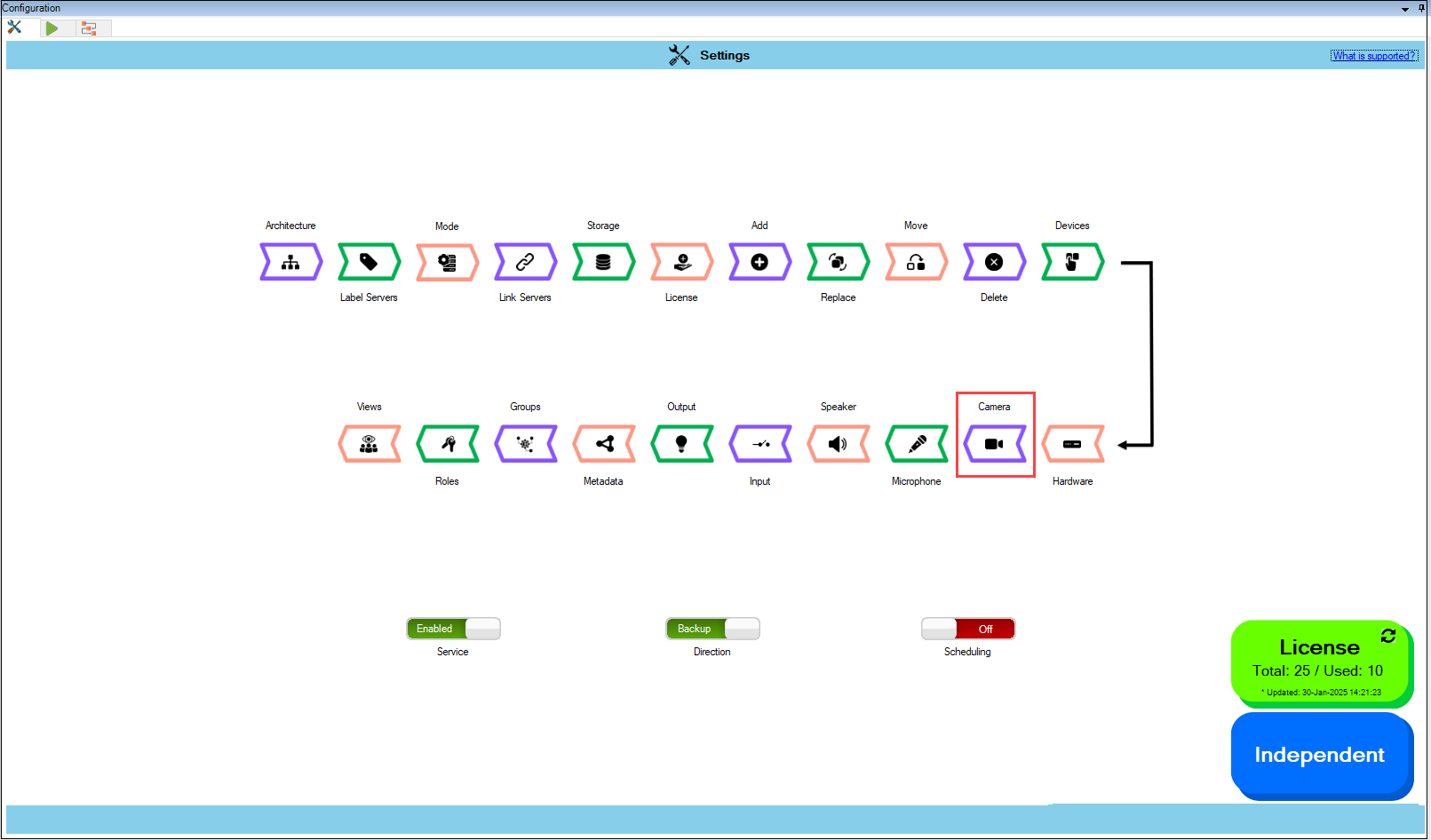
<figure><img src="https://content.gitbook.com/content/K95oxUATgzuZZ2VhRoDw/blobs/jU3y5ZZ6ifnzuT93hY6k/Camera1.png" alt=""><figcaption><p>Camera Option</p></figcaption></figure>

## Scope

The scope is limited to RMF-licensed devices selected by the [Device Selection](https://docs.vega365.com/redundancy-management-framework/user-manual/configuration-dashboard/device-selection.md) block and to the features listed under the "**Settings here correspond to**" section in the picture below. The direction of synchronization depends on the direction setting. See [Set Synchronization Direction](https://docs.vega365.com/redundancy-management-framework/user-manual/configuration-dashboard/set-synchronization-direction.md). If no devices are selected in the Device Selection block, this option is disabled.

<figure><img src="https://content.gitbook.com/content/K95oxUATgzuZZ2VhRoDw/blobs/nJRa7RzszrwwnCt6b6J4/Camera2.png" alt=""><figcaption><p>Camera Settings Screen</p></figcaption></figure>

## Enable

To enable and synchronize camera settings, follow these steps:

1. Click **Camera**.

{% hint style="info" %}
**Note:** To make the camera block clickable, at least one RMF-licensed device must be selected from the Devices section. For more information, refer to the  [Device Selection](https://docs.vega365.com/redundancy-management-framework/user-manual/configuration-dashboard/device-selection.md) guide.
{% endhint %}

<figure><img src="https://content.gitbook.com/content/K95oxUATgzuZZ2VhRoDw/blobs/4WH7u8d8tUhEGMImkY5E/Camera1.png" alt=""><figcaption><p>Camera Option</p></figcaption></figure>

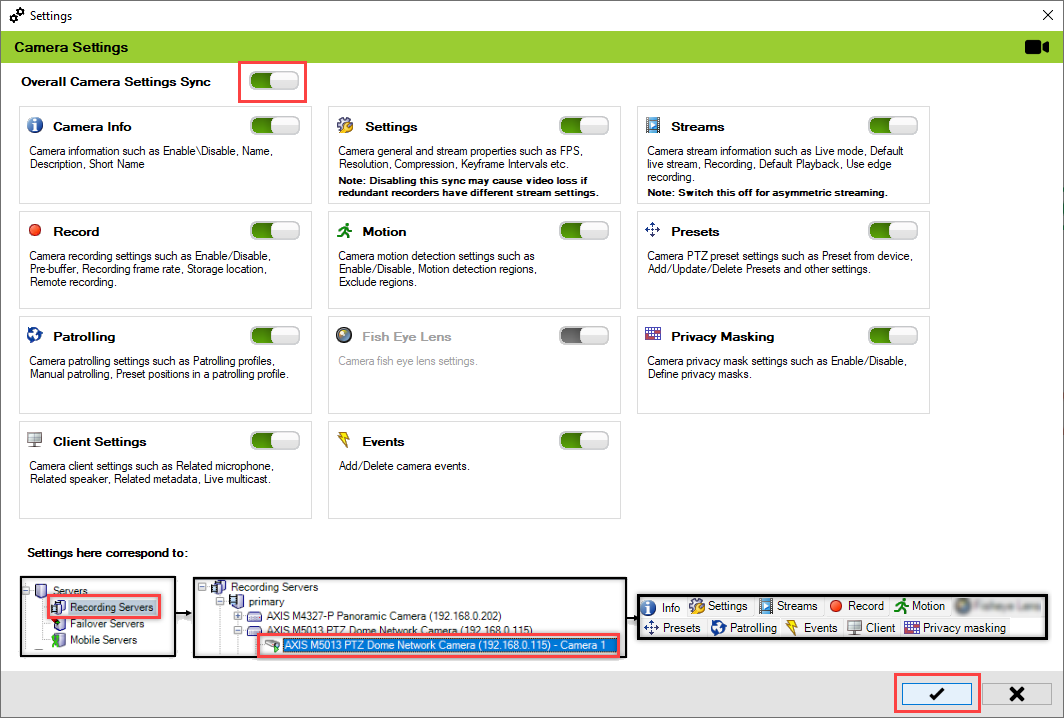
2. Turn on the **Overall Camera Settings Sync** switch to activate all individual camera settings. You can enable or disable different sub-settings as needed.

<figure><img src="https://content.gitbook.com/content/K95oxUATgzuZZ2VhRoDw/blobs/nJRa7RzszrwwnCt6b6J4/Camera2.png" alt=""><figcaption><p>Camera Settings Screen</p></figcaption></figure>

<figure><img src="https://content.gitbook.com/content/K95oxUATgzuZZ2VhRoDw/blobs/tWLj2gDFEtohNIn0oTr0/Camera21.png" alt=""><figcaption><p>Enable Sub-Categories as needed</p></figcaption></figure>

3. Click the **Check Mark** button to save and exit.

<figure><img src="https://content.gitbook.com/content/K95oxUATgzuZZ2VhRoDw/blobs/0QS72Qxce2F4lHs5ItVJ/Save.png" alt=""><figcaption><p>Check Mark Button</p></figcaption></figure>

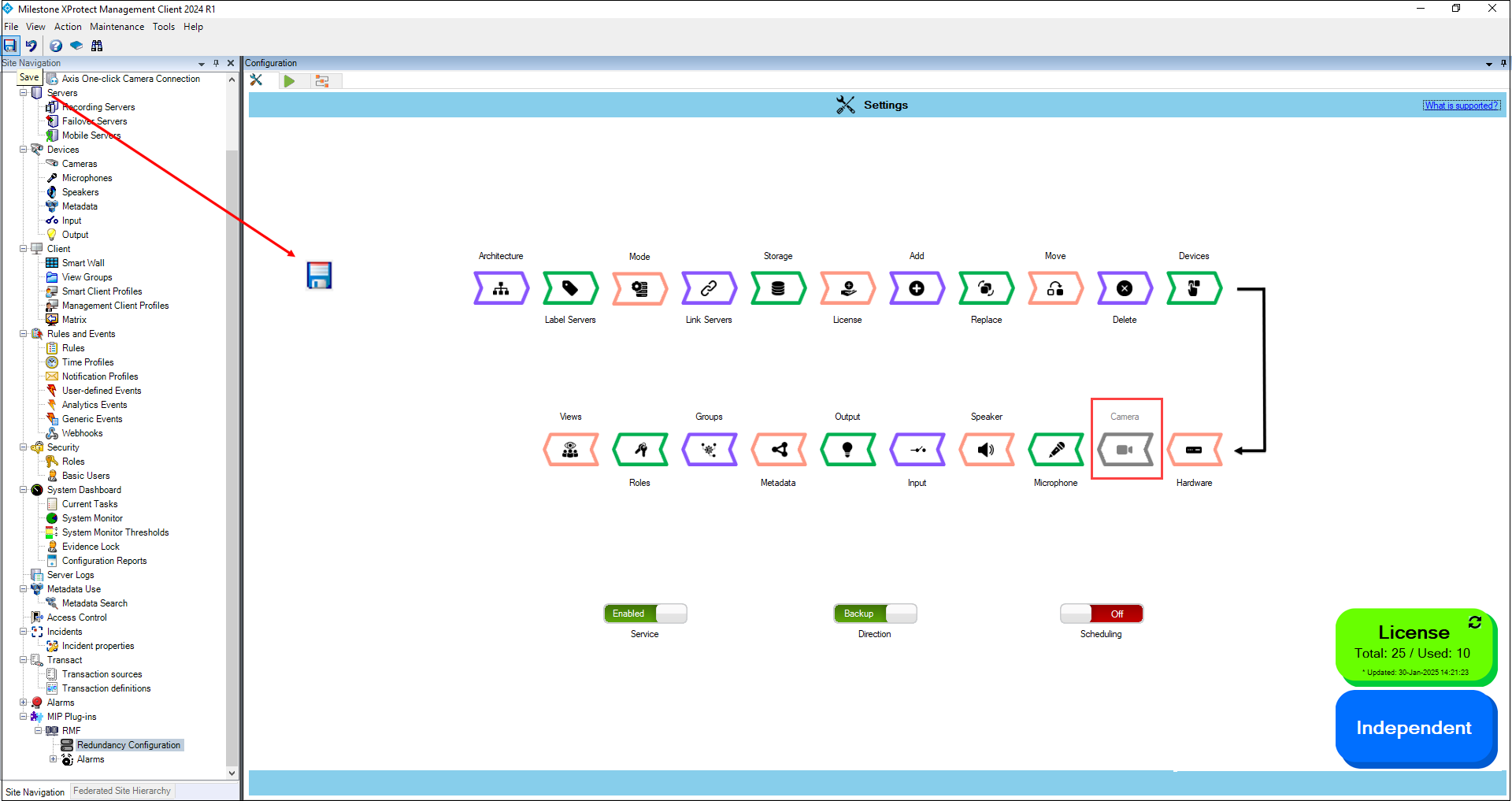
4. Click **Save** in the Milestone toolbar to save the changes.

<figure><img src="https://content.gitbook.com/content/K95oxUATgzuZZ2VhRoDw/blobs/PuFYYiDeNxQoiEqAwQqR/CameraMilestone.png" alt=""><figcaption><p>Save Icon—Milestone Toolbar</p></figcaption></figure>

### Turning off the Settings Option

{% hint style="danger" %}
**Important Notice**

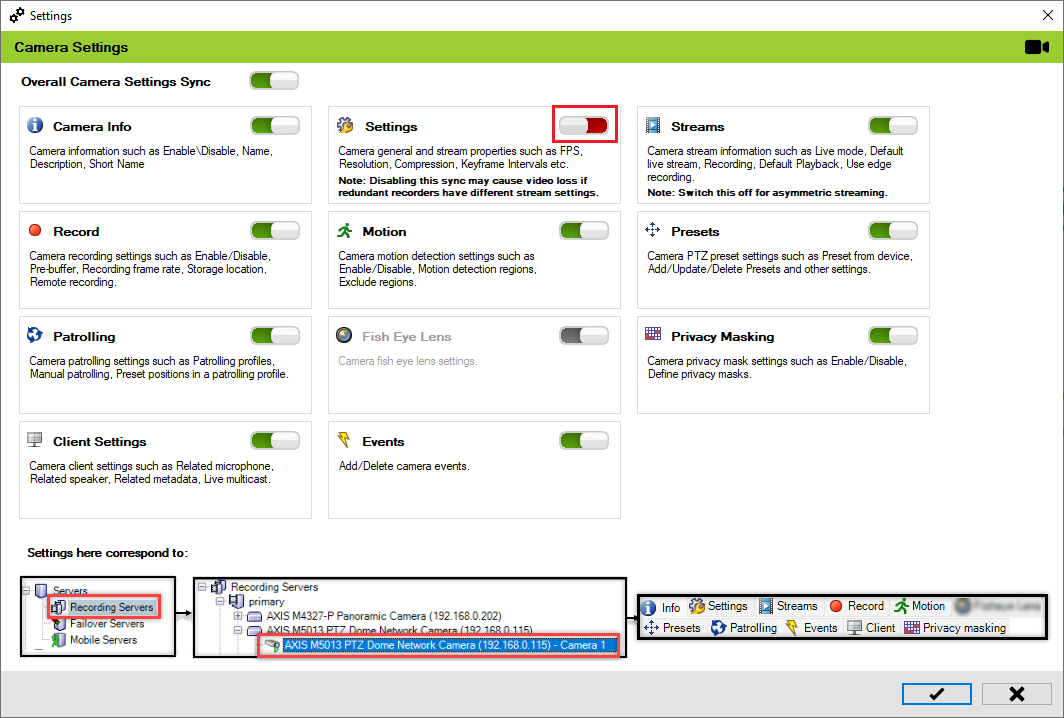
Turning off the **Settings** option may cause video loss if redundant recorders have different stream definitions. Each recorder recognizes a stream definition mismatch with the camera and will reprogram the camera. This can lead to the other recorder losing video, creating a ping-pong effect. Do not turn this off.&#x20;

Stream Definition differs from Stream Selection. Each camera in a Milestone device has multiple stream definitions, which are the streaming profiles programmed into the camera.

The recorder selects streams from the stream definition list to use for either a live or recorded stream.
{% endhint %}

<figure><img src="https://content.gitbook.com/content/K95oxUATgzuZZ2VhRoDw/blobs/2FW3GZpUbQRcDmJ9NTzK/Settings1.png" alt=""><figcaption><p>Disabled Settings Option</p></figcaption></figure>

### Asymmetric Streaming

Asymmetric streaming allows a camera to transmit varying resolutions and frame rates to the Primary and Secondary Data Centers. System integrators can leverage this feature to create a redundancy strategy that fits their budget. For example, while the Primary Data Center may have 10 recorders, the Secondary Data Center might only have 5. However, the Secondary Data Center can still offer complete redundancy by housing more cameras per recorder than the Primary Data Center.

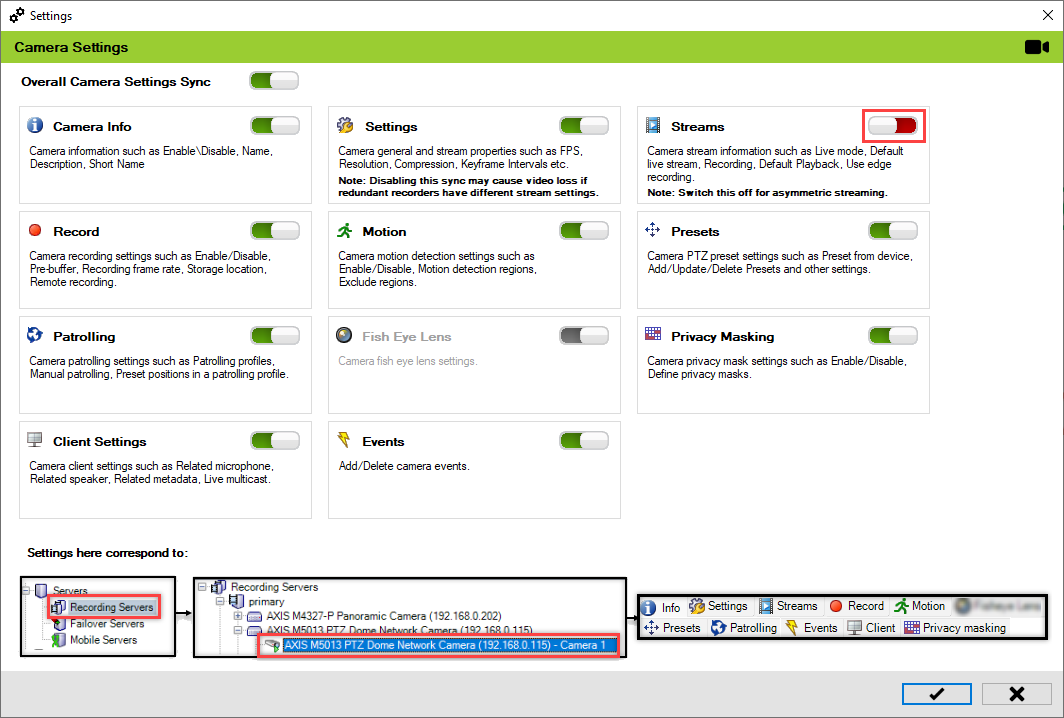
1. To enable asymmetric streaming, turn off the stream synchronization option shown below. When off, the primary and secondary recorders can choose different streams from the list of stream definitions for the camera.

<figure><img src="https://content.gitbook.com/content/K95oxUATgzuZZ2VhRoDw/blobs/Q0nOvptbxhhW7IlANSp8/Streaming.png" alt=""><figcaption><p>Disabled the Streams Option to Achieve Asymmetric Redundancy</p></figcaption></figure>

2. Different streams must be chosen in the primary and secondary recorders, either through the [Stream Selection](https://docs.vega365.com/redundancy-management-framework/user-manual/workflows-dashboard/stream-selection.md)tool provided by RMF, under the workflows tab, or directly within Milestone.

{% embed url="<https://youtu.be/jaGwtBUrb4E>" %}

## Disable

To turn off the camera settings synchronization, perform the following steps:

1. Click **Camera**.

<figure><img src="https://content.gitbook.com/content/K95oxUATgzuZZ2VhRoDw/blobs/4WH7u8d8tUhEGMImkY5E/Camera1.png" alt=""><figcaption><p>Camera Option</p></figcaption></figure>

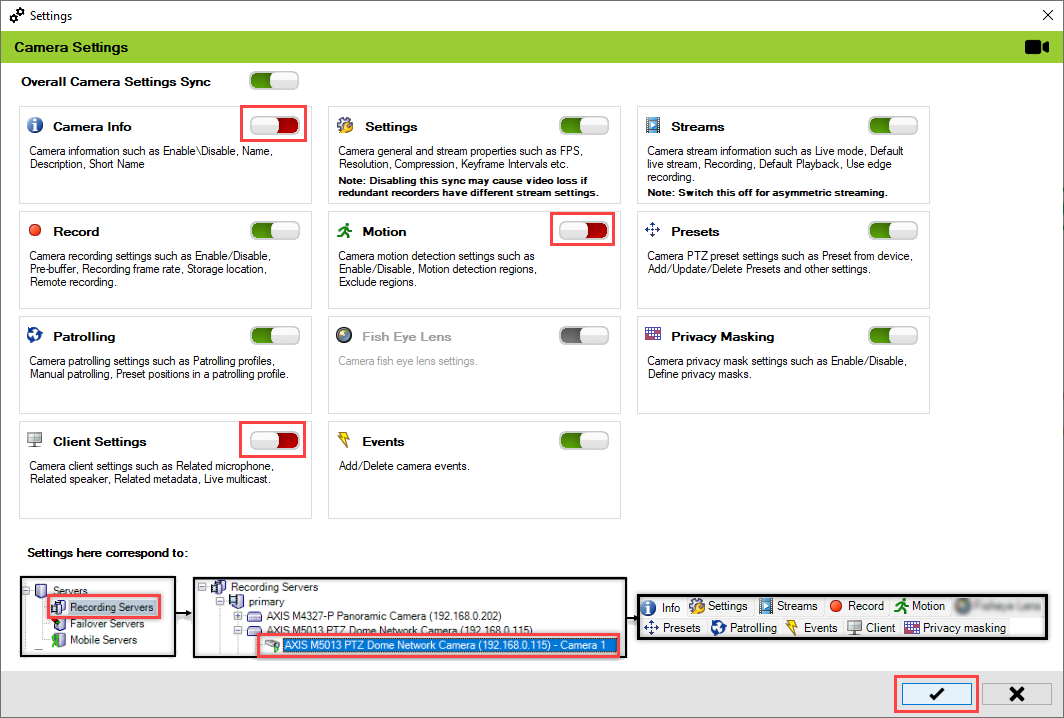
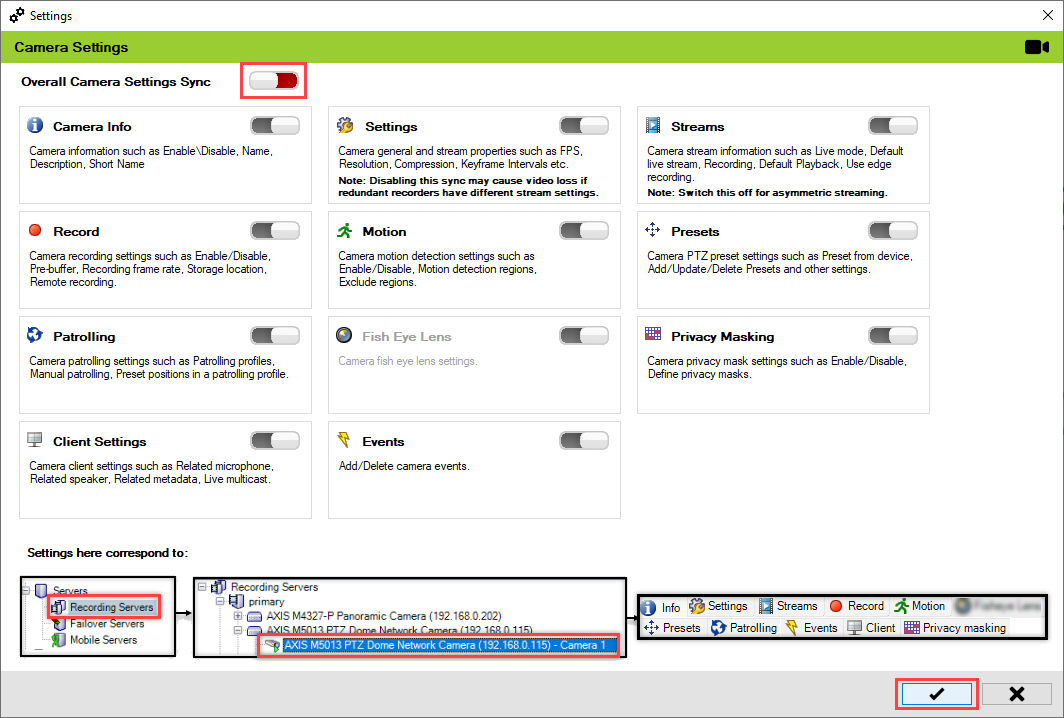
2. Move the toggle button to display red and click the **Save** icon.

<figure><img src="https://content.gitbook.com/content/K95oxUATgzuZZ2VhRoDw/blobs/xVpfJbknyMpq9iw1akH3/Disable.png" alt=""><figcaption><p>Camera Settings Disabled</p></figcaption></figure>

3. Click **Save** in the Milestone toolbar to save the changes.

<figure><img src="https://content.gitbook.com/content/K95oxUATgzuZZ2VhRoDw/blobs/Almr04Z0dNZTrJVxmmOw/CameraMilestone2.png" alt=""><figcaption><p>Save Icon—Milestone Toolbar</p></figcaption></figure>

{% hint style="success" %}
**Step Result:** The **Camera** settings option is disabled.
{% endhint %}