> For the complete documentation index, see [llms.txt](https://docs.vega365.com/llms.txt). Markdown versions of documentation pages are available by appending `.md` to page URLs; this page is available as [Markdown](https://docs.vega365.com/redundancy-management-framework/user-manual/configuration-dashboard/synchronize-device-input.md).

# Synchronize Device Input

Precision Synchronization for Input Settings.

## About

Use this option to synchronize Input settings between the Primary and Redundant sites.&#x20;

## Scope

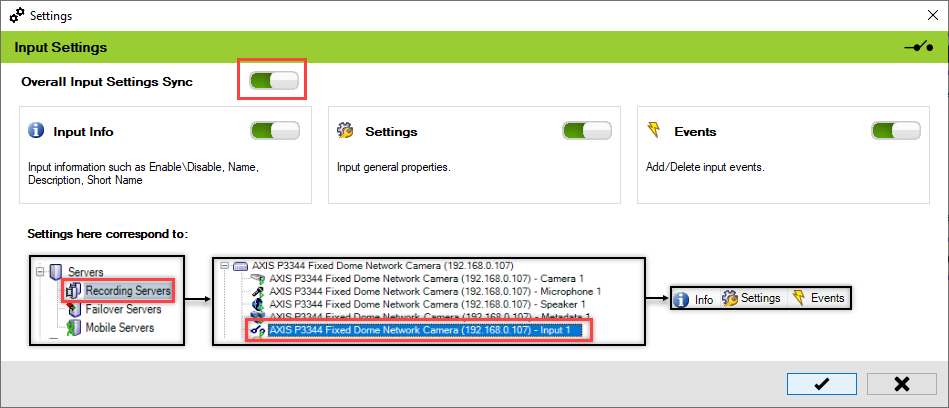
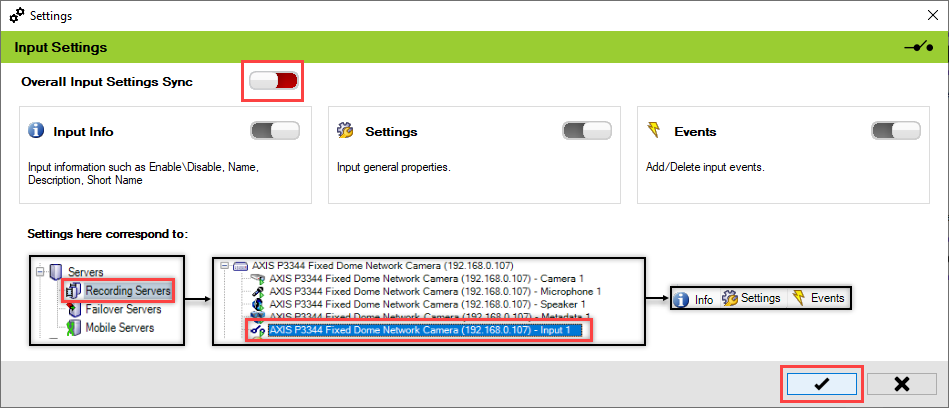
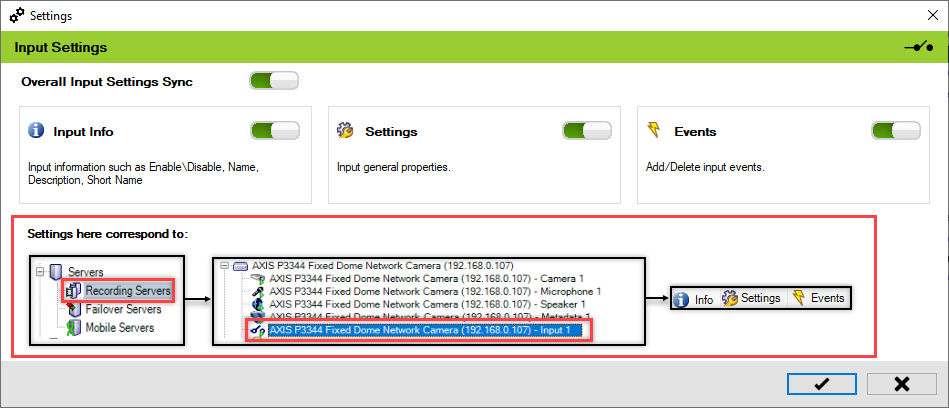
The scope is limited to RMF-licensed devices selected by the [Device Selection](https://docs.vega365.com/redundancy-management-framework/user-manual/configuration-dashboard/device-selection.md) block and to the features listed under the "Settings here correspond to" section in the picture below.  The direction of synchronization depends on the direction setting. See [Set Synchronization Direction](https://docs.vega365.com/redundancy-management-framework/user-manual/configuration-dashboard/set-synchronization-direction.md).  If no devices are selected in the Device Selection block, this option is disabled.

<figure><img src="https://content.gitbook.com/content/K95oxUATgzuZZ2VhRoDw/blobs/vajVmcrHtrMOaRU3lIpS/Inputsettings2.png" alt=""><figcaption><p>View Input Settings—Site Navigation Pane</p></figcaption></figure>

## Enable

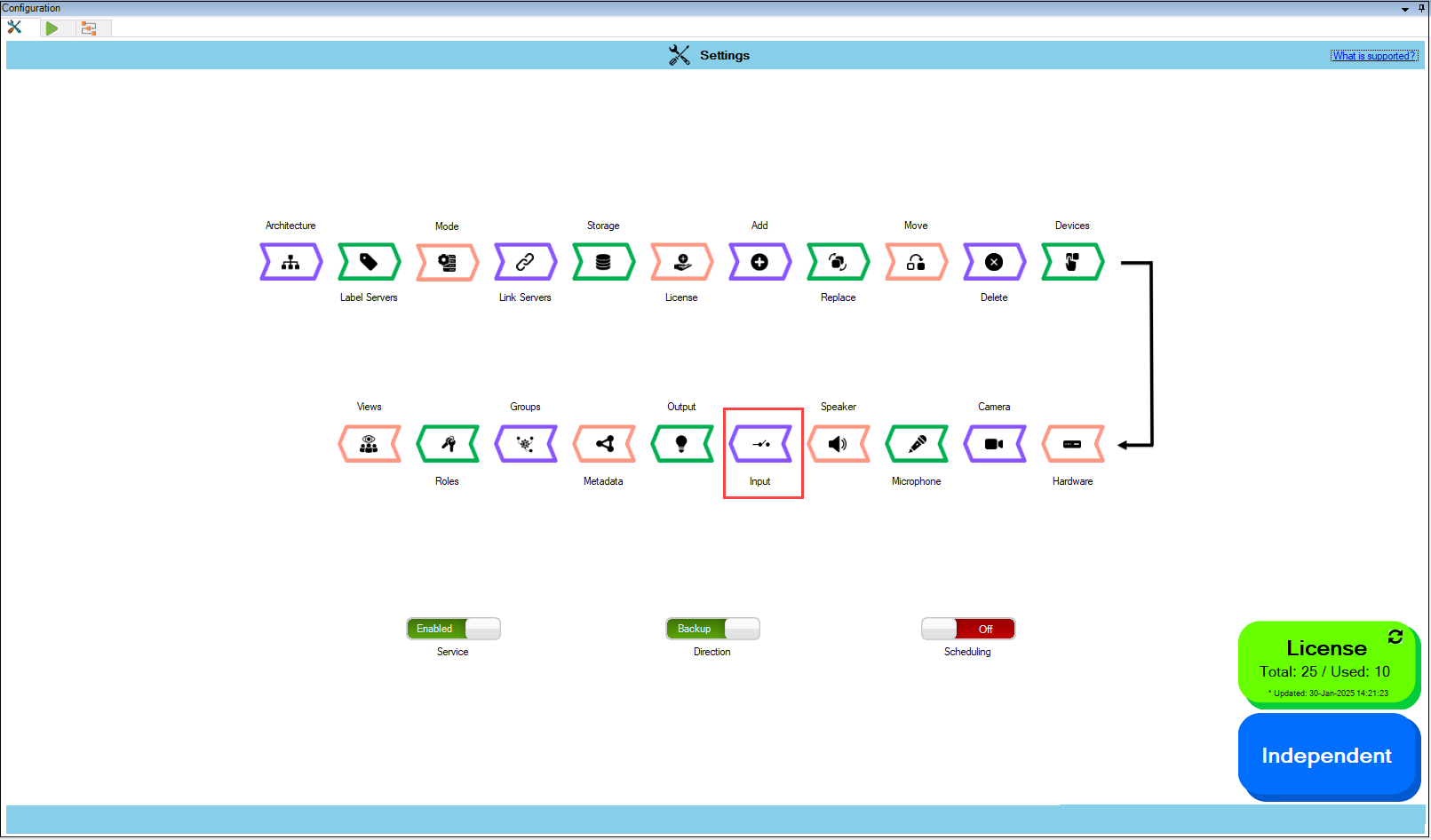
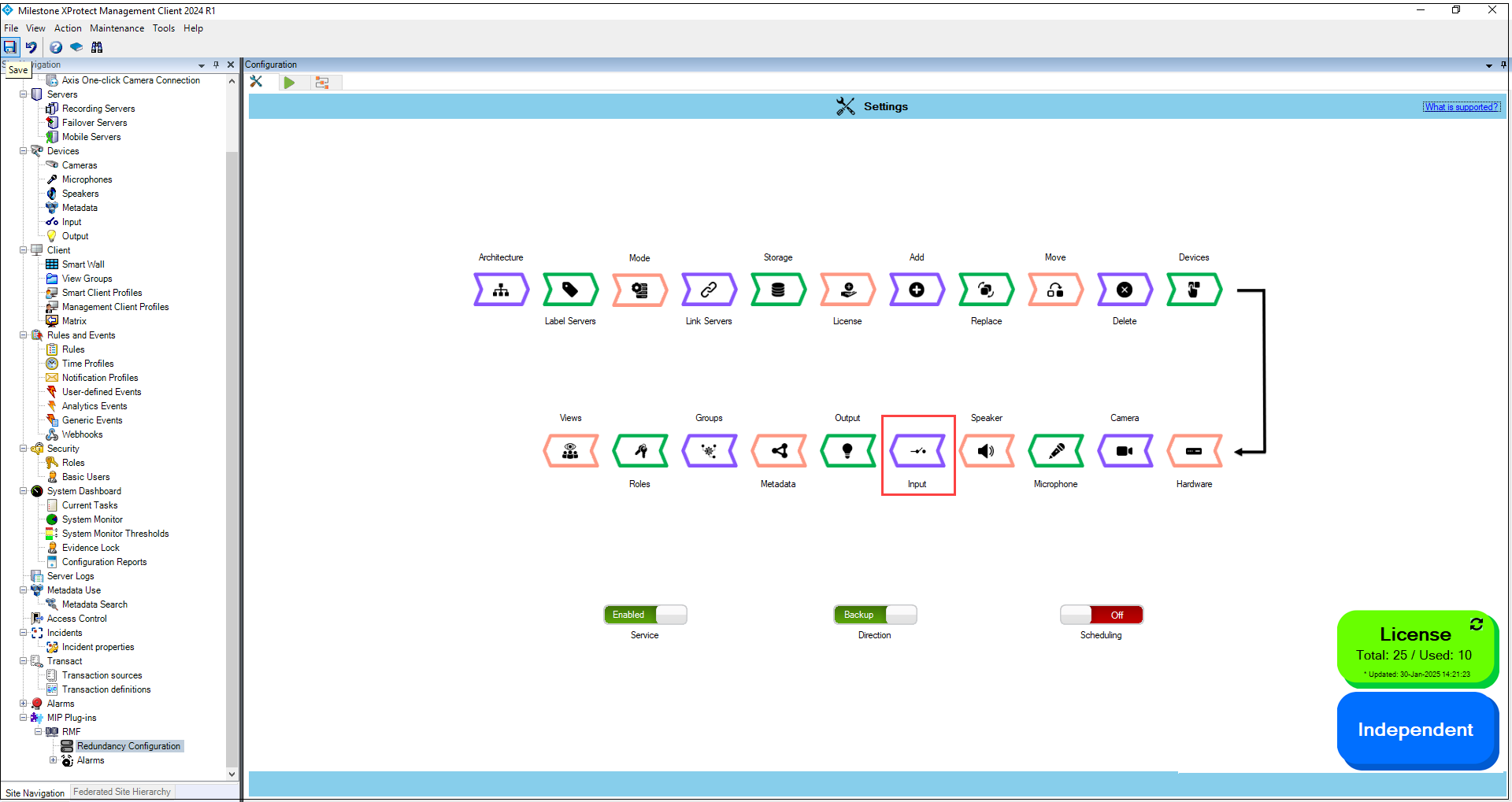
To enable and synchronize the device input settings, perform the following steps:

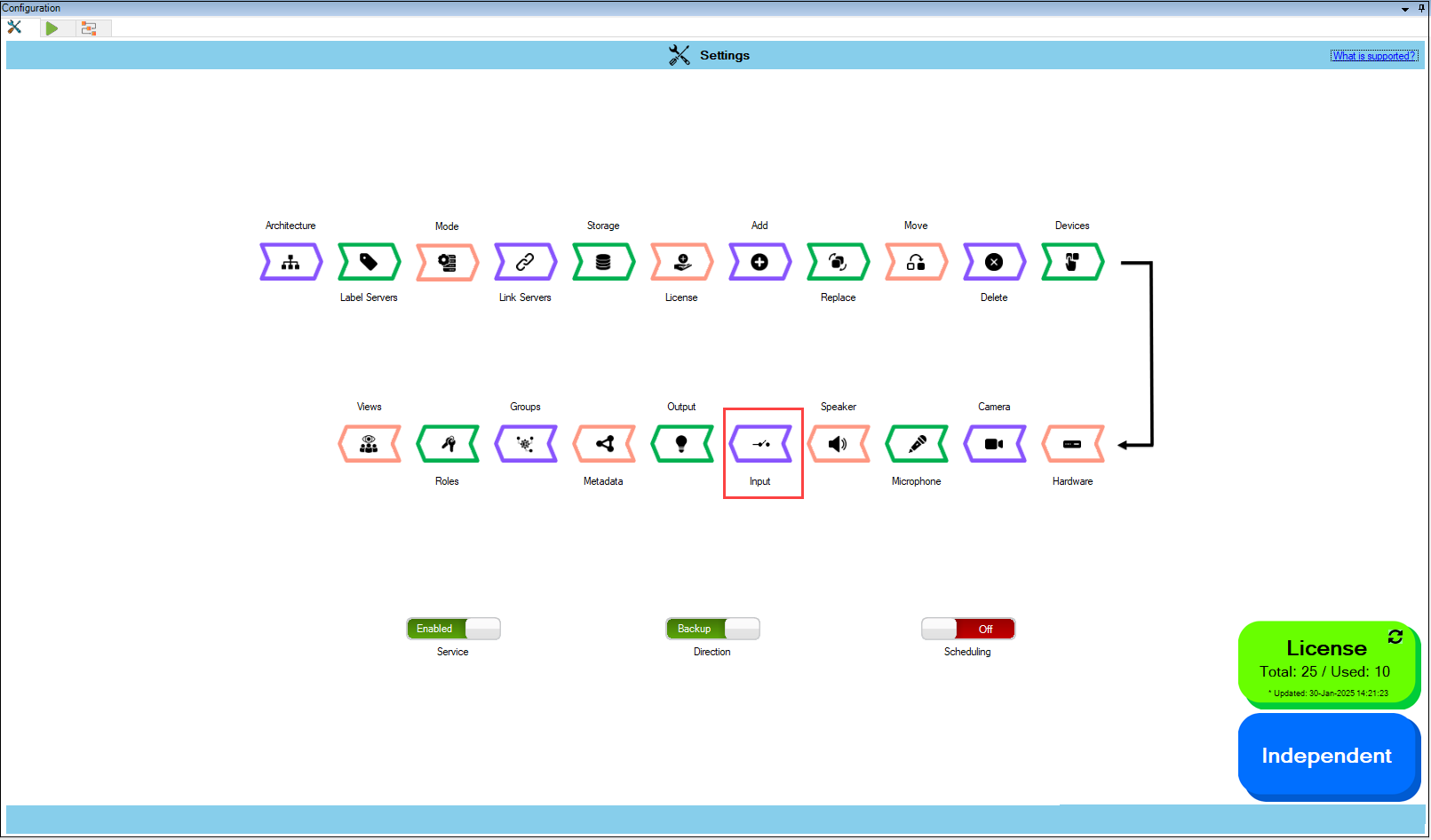
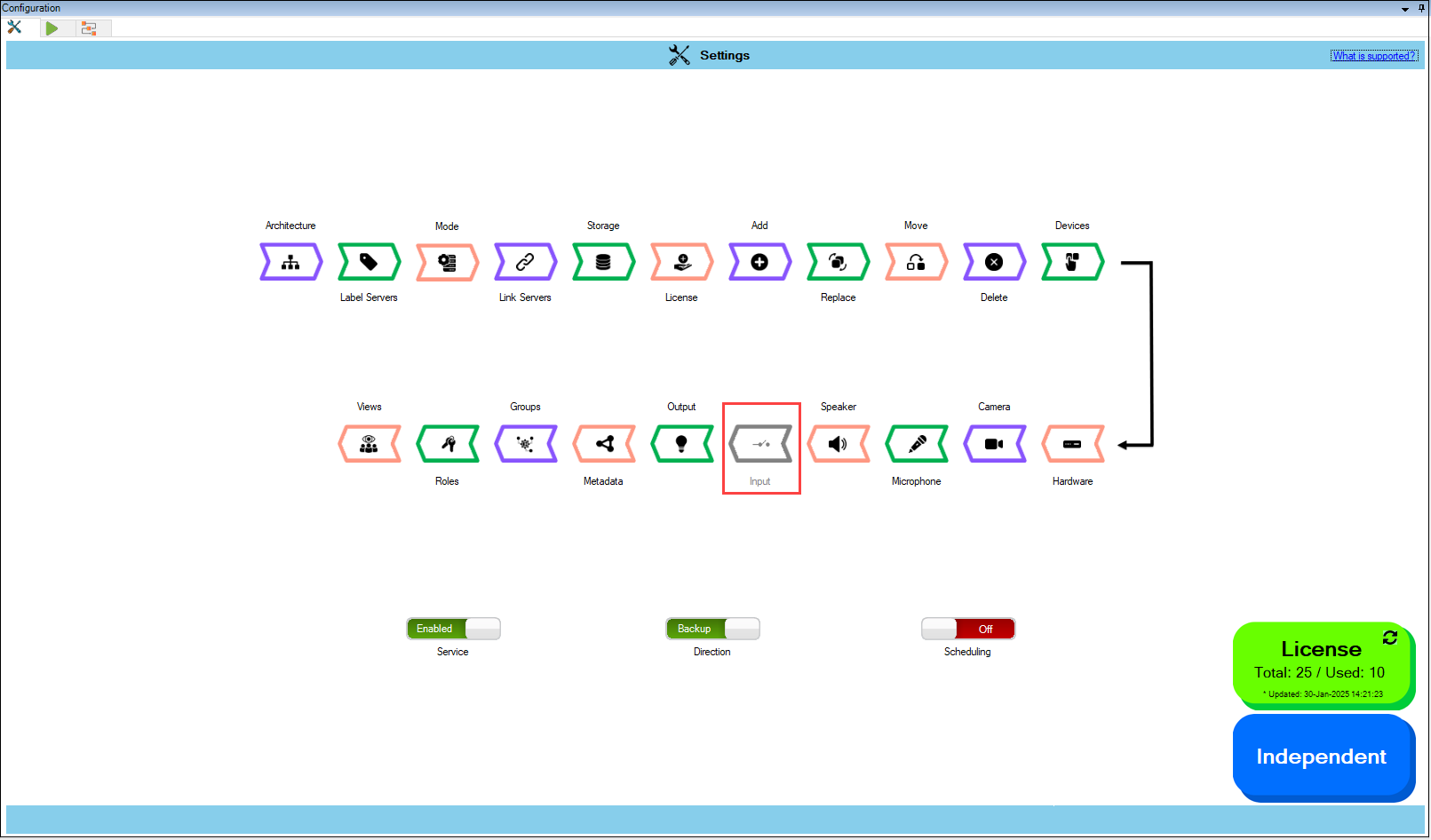
1. Click **Input**.

{% hint style="info" %}
**Note:** For the Input block to be clickable, at least one device must be selected from the&#x20;

Devices section. For more information, refer to [Device Selection](https://docs.vega365.com/redundancy-management-framework/user-manual/configuration-dashboard/device-selection.md)
{% endhint %}

<figure><img src="https://content.gitbook.com/content/K95oxUATgzuZZ2VhRoDw/blobs/rX8Wg5eE60X5r4st1LhK/Input.png" alt=""><figcaption><p>Input Option</p></figcaption></figure>

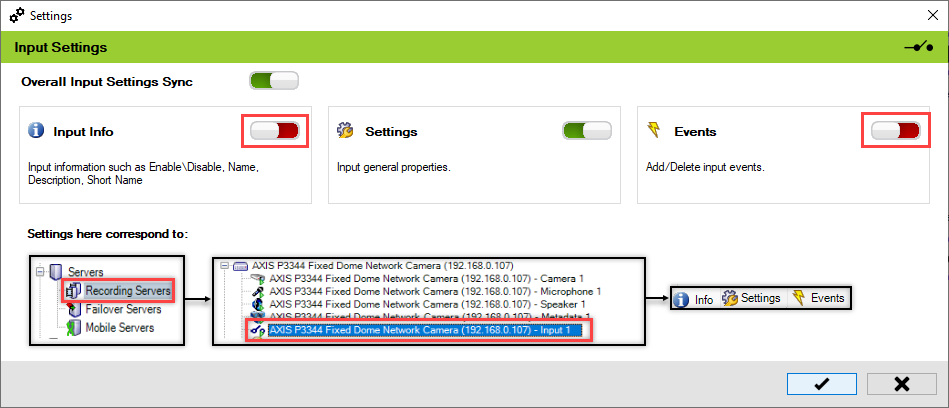
2. Enable the **Overall Input Settings Sync** to enable all the individual device input settings. Enable/Disable different sub-settings as needed.

<figure><img src="https://content.gitbook.com/content/K95oxUATgzuZZ2VhRoDw/blobs/Sj6qV7jYXRen9fatwEHl/Input%20settings.png" alt=""><figcaption><p>Input Settings Screen</p></figcaption></figure>

<figure><img src="https://content.gitbook.com/content/K95oxUATgzuZZ2VhRoDw/blobs/U8Ls4hilLrKZuQ9CZPzY/RequiredInput.png" alt=""><figcaption><p>Synchronize the Required Input Settings</p></figcaption></figure>

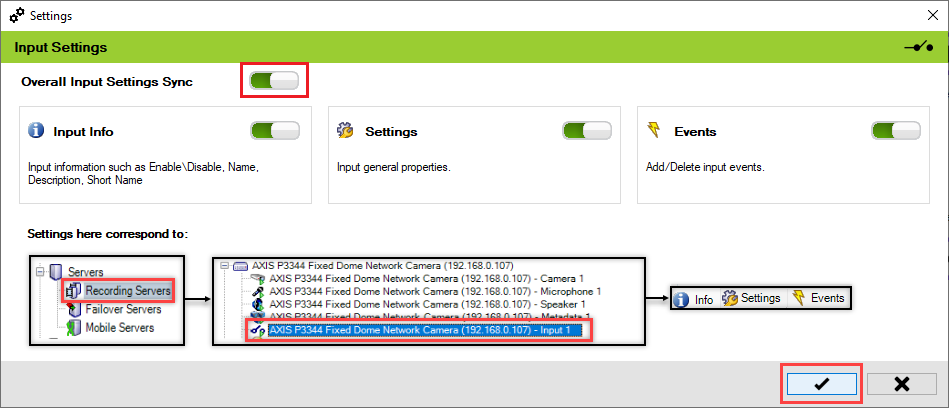
3. To retain the settings, click the **Check Mark** button.

<figure><img src="https://content.gitbook.com/content/K95oxUATgzuZZ2VhRoDw/blobs/y8oblf1GrwxwoR4lumPf/Inputsave.png" alt=""><figcaption><p>Check Mark Button</p></figcaption></figure>

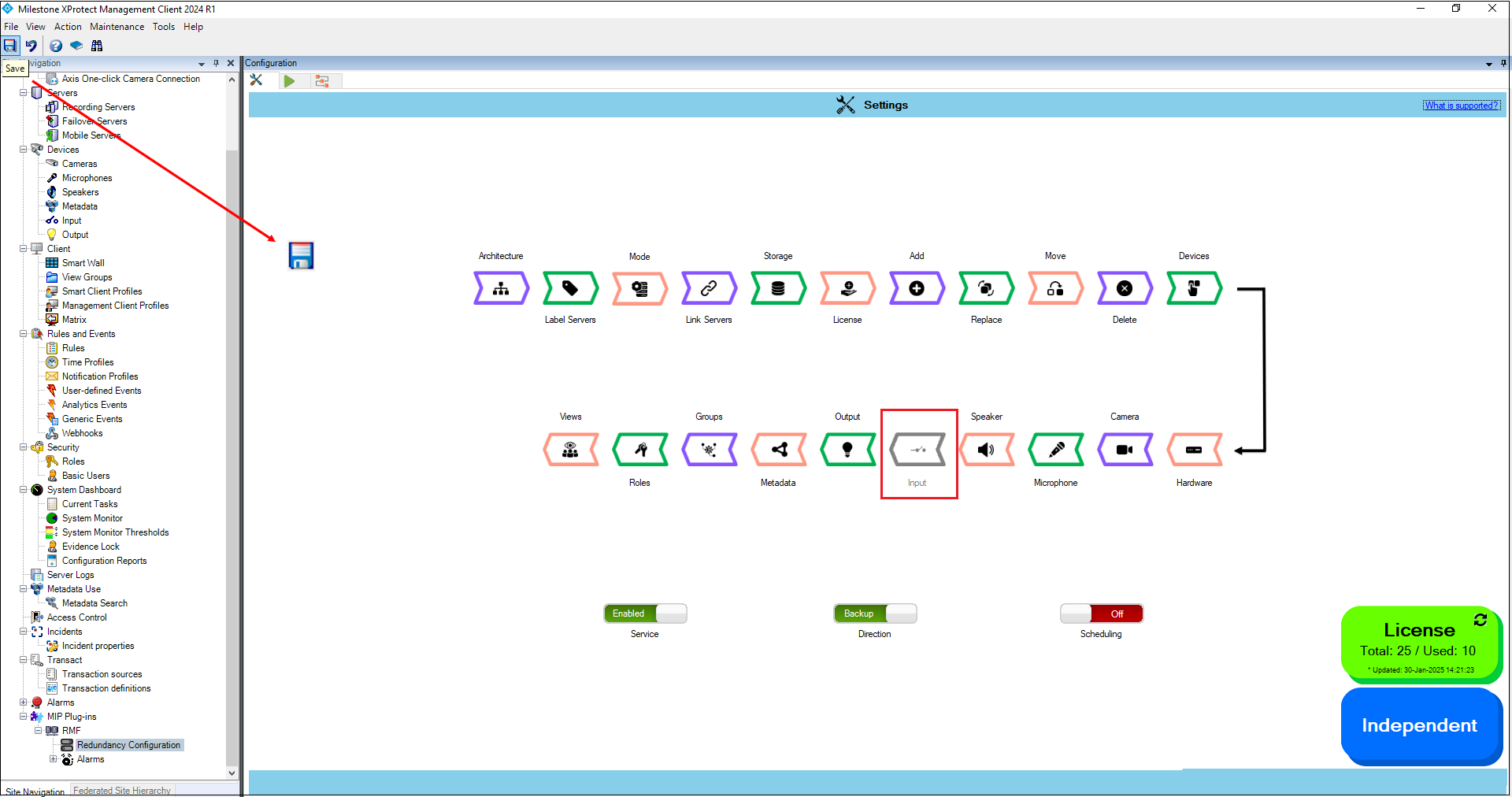
4. Click **Save** in the Milestone toolbar to save the changes.

<figure><img src="https://content.gitbook.com/content/K95oxUATgzuZZ2VhRoDw/blobs/OvNbBa61U2gq3PL1gK0N/InputMilestone.png" alt=""><figcaption><p>Save Icon—Milestone Tool</p></figcaption></figure>

## Disable

To turn off the device input settings synchronization, perform the following steps:

1. Click **Input**.

<figure><img src="https://content.gitbook.com/content/K95oxUATgzuZZ2VhRoDw/blobs/1ffZEXDuRMVvfZceqomb/Input.png" alt=""><figcaption><p>Input Option</p></figcaption></figure>

2. To turn off the synchronization of the device input settings, move the toggle button to display red and click the **Save** icon.

<figure><img src="https://content.gitbook.com/content/K95oxUATgzuZZ2VhRoDw/blobs/WZXBH30ACxXkFtFrQ8YY/InputDisable.png" alt=""><figcaption><p>Input Settings Disabled</p></figcaption></figure>

3. Click **Save** in the Milestone toolbar to save the changes.

<figure><img src="https://content.gitbook.com/content/K95oxUATgzuZZ2VhRoDw/blobs/6IYVkvmbAcGFBzKGkm0J/InputMilestone2.png" alt=""><figcaption><p>Save Icon—Milestone Toolbar</p></figcaption></figure>

{% hint style="success" %}
**Step Result:** The **Input** settings option is disabled.
{% endhint %}

<figure><img src="https://content.gitbook.com/content/K95oxUATgzuZZ2VhRoDw/blobs/pkc3CJu7j4Fx0e5xZGjz/Inputdisabled2.png" alt=""><figcaption><p>Disabled Input Settings Option</p></figcaption></figure>