> For the complete documentation index, see [llms.txt](https://docs.vega365.com/llms.txt). Markdown versions of documentation pages are available by appending `.md` to page URLs; this page is available as [Markdown](https://docs.vega365.com/redundancy-management-framework/user-manual/configuration-dashboard/synchronize-hardware.md).
# Synchronize Hardware
Precision Synchronization for Hardware Settings
## About
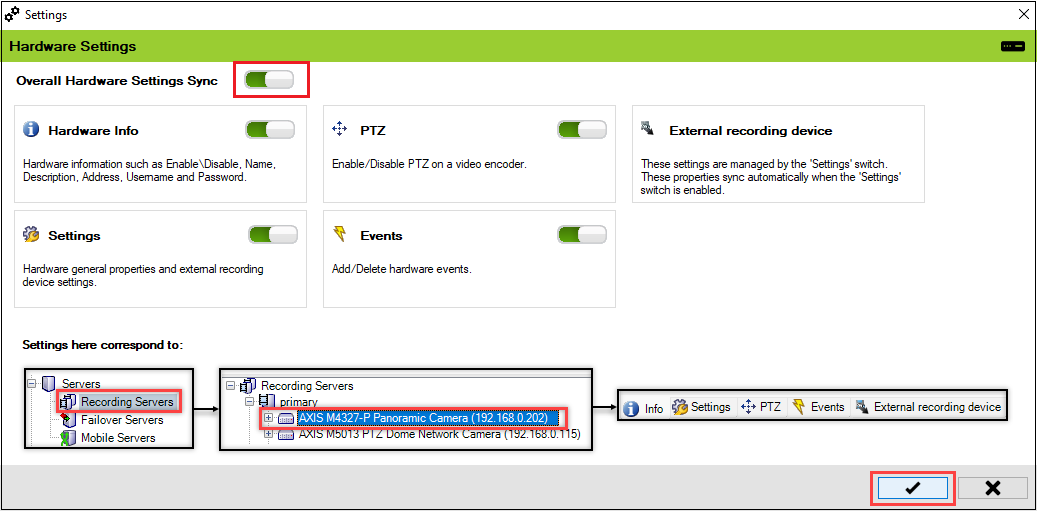
Each hardware device could contain one or more cameras, speakers, microphones, inputs, outputs, and metadata streams. Use this block to control which hardware properties are automatically synchronized by RMF. Such settings correspond to IP addresses, passwords, device-level event definitions, hardware names, etc.
## Scope
The scope of action is limited to RMF-licensed devices selected in the [Device Selection](https://docs.vega365.com/redundancy-management-framework/user-manual/configuration-dashboard/device-selection.md) section. The direction of synchronization depends on the direction setting. See [Set Synchronization Direction](https://docs.vega365.com/redundancy-management-framework/user-manual/configuration-dashboard/set-synchronization-direction.md). If no devices are selected in the Device Selection block, this option is disabled.
{% hint style="info" %}
Please see the "Settings here correspond to" section in the picture below to understand which XProtect features this screen synchronizes.
{% endhint %}
Hardware Settings Screen
## Enable
To synchronize your hardware settings, follow these steps:
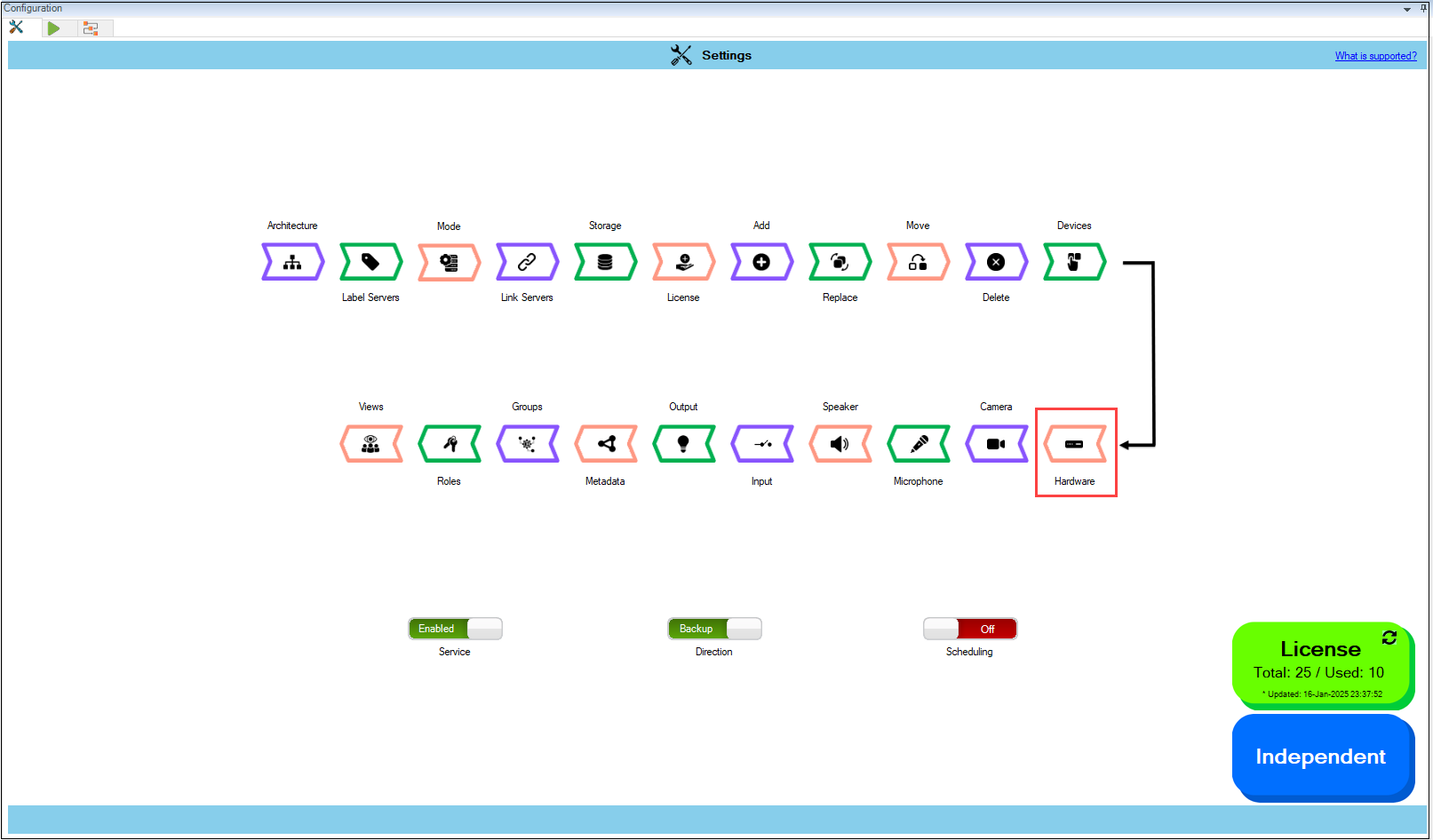
1. Click **Hardware**.
{% hint style="info" %}
**Note:** The hardware block will only be clickable if at least one device is selected from the Devices section. For more information, refer to [Device Selection](https://docs.vega365.com/redundancy-management-framework/user-manual/configuration-dashboard/device-selection.md) documentation.
{% endhint %}
Hardware Option
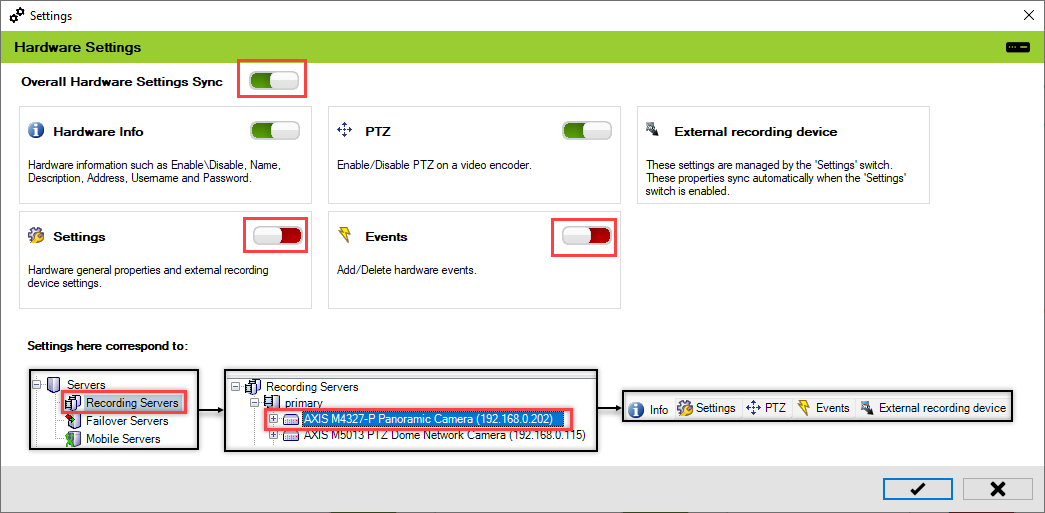
2. Enable the **Overall Hardware Settings Sync** to synchronize all the individual hardware settings. Different sub-settings can be enabled or turned off as needed.
Synchronize the Required Hardware
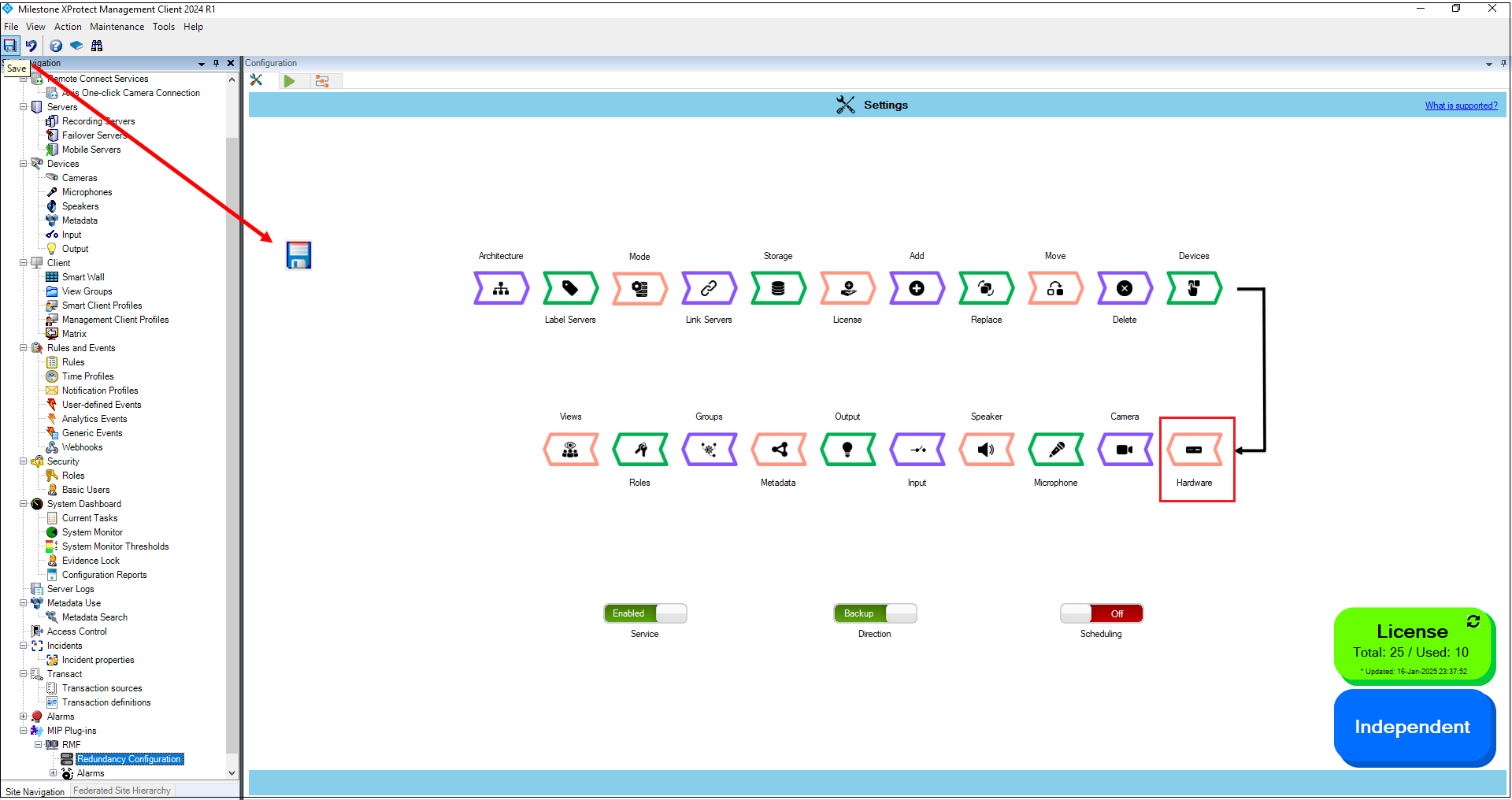
3. To retain your configured settings, click the '**Check Mark**' icon. Then, click '**Save**' in the Milestone toolbar to save changes.