> For the complete documentation index, see [llms.txt](https://docs.vega365.com/llms.txt). Markdown versions of documentation pages are available by appending `.md` to page URLs; this page is available as [Markdown](https://docs.vega365.com/redundancy-management-framework/user-manual/configuration-dashboard/synchronize-roles.md).

# Synchronize Roles

Mirror roles between primary and secondary sites.

## About

In an active-active redundancy setup, modifying user access to a group of primary cameras requires the same changes to the corresponding secondary cameras. Additionally, in multi-database deployments, such as federated or independent sites, any additions or removals of users or changes to roles at one site must be mirrored at the other. Performing these actions manually can be tedious. The role synchronization feature helps automatically synchronize roles between primary and redundant sites.

## Scope

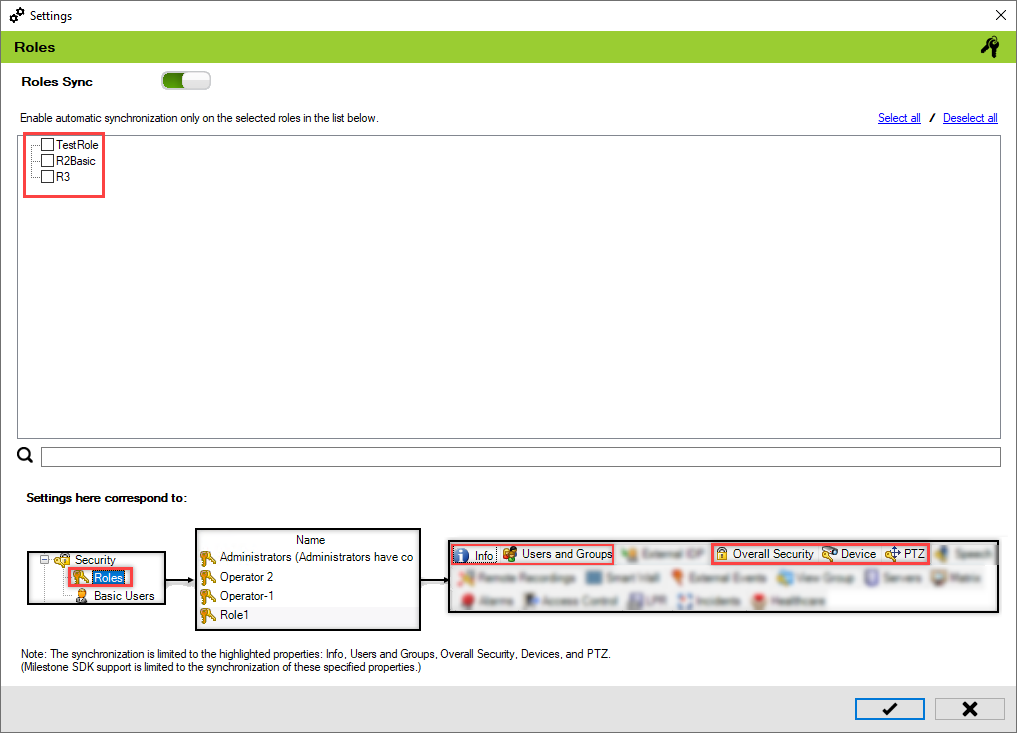
The scope is limited to RMF-licensed devices selected by the [Device Selection](https://docs.vega365.com/redundancy-management-framework/user-manual/configuration-dashboard/device-selection.md) block and encompasses the features listed under the "Settings here correspond to" section in the picture below.  If no devices are selected, this block remains disabled. The direction of synchronization depends on the direction setting. See [Set Synchronization Direction](https://docs.vega365.com/redundancy-management-framework/user-manual/configuration-dashboard/set-synchronization-direction.md).&#x20;

<figure><img src="https://content.gitbook.com/content/K95oxUATgzuZZ2VhRoDw/blobs/xm9ROZlHw6My29mqaCnJ/settings.png" alt=""><figcaption><p>Role Settings—Site Navigation Pane</p></figcaption></figure>

## Enable

To enable Roles for synchronization, perform the following steps:

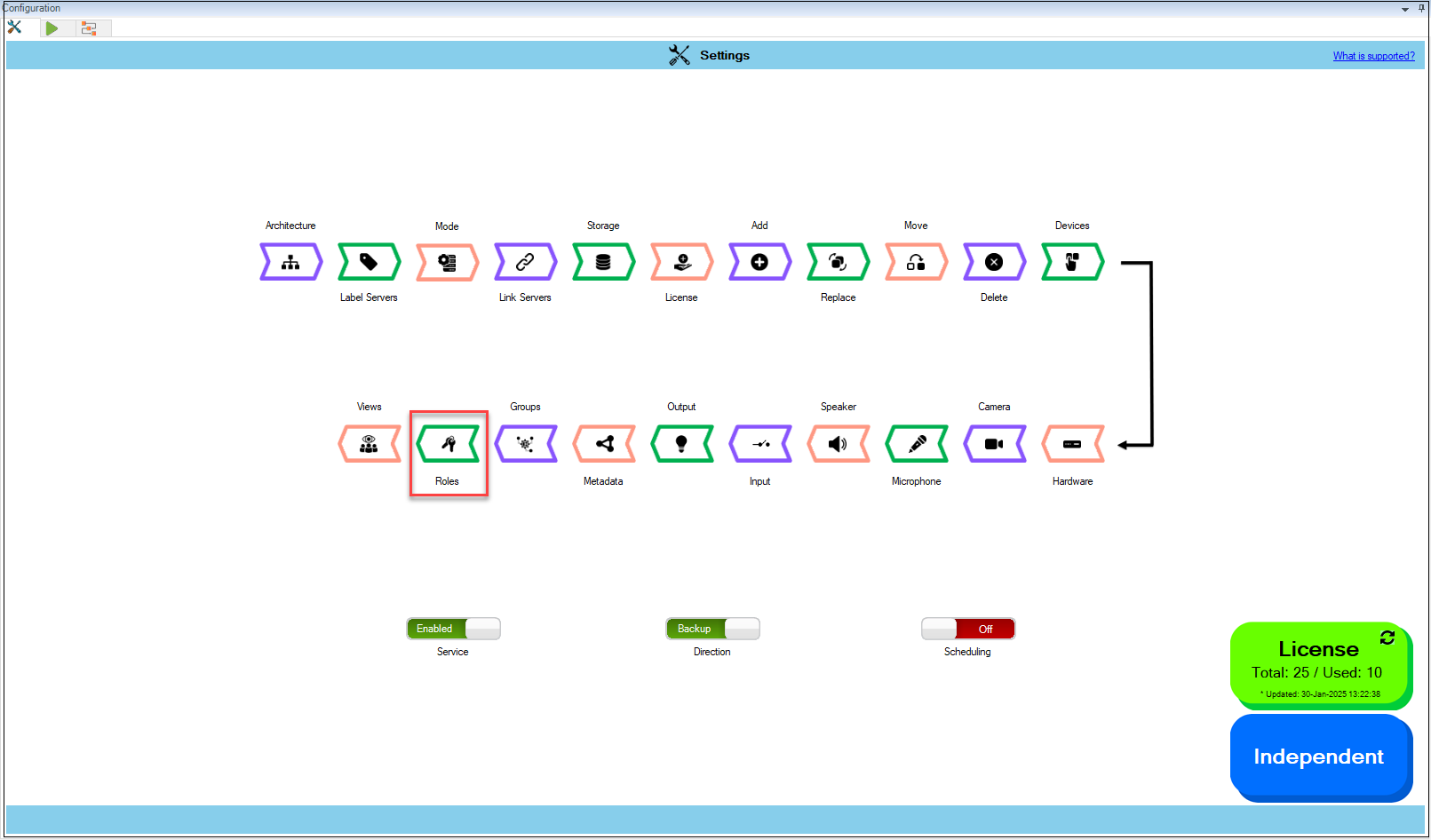
1. Click **Roles**.

<figure><img src="https://content.gitbook.com/content/K95oxUATgzuZZ2VhRoDw/blobs/GlzL8RuNPZGXt19prb9O/roles.png" alt=""><figcaption><p>Roles Option</p></figcaption></figure>

{% hint style="success" %}
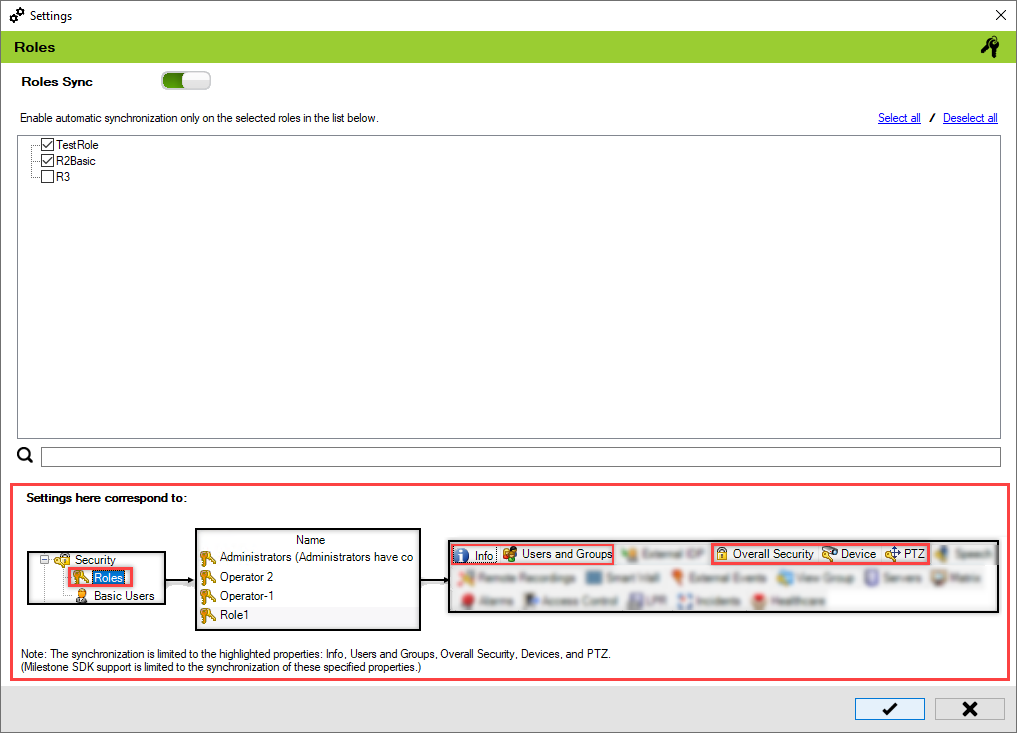
**Step Result:** The Roles Settings screen appears. The Roles Sync toggle button is enabled by default. In Backup Mode, all the roles available on the Primary Site are liste&#x64;**.** In **Restore Mode,** roles on the Secondary Site are listed.
{% endhint %}

<figure><img src="https://content.gitbook.com/content/K95oxUATgzuZZ2VhRoDw/blobs/wHD7Lv2To2l60oxi6L6Q/list.png" alt=""><figcaption><p>Settings Screen</p></figcaption></figure>

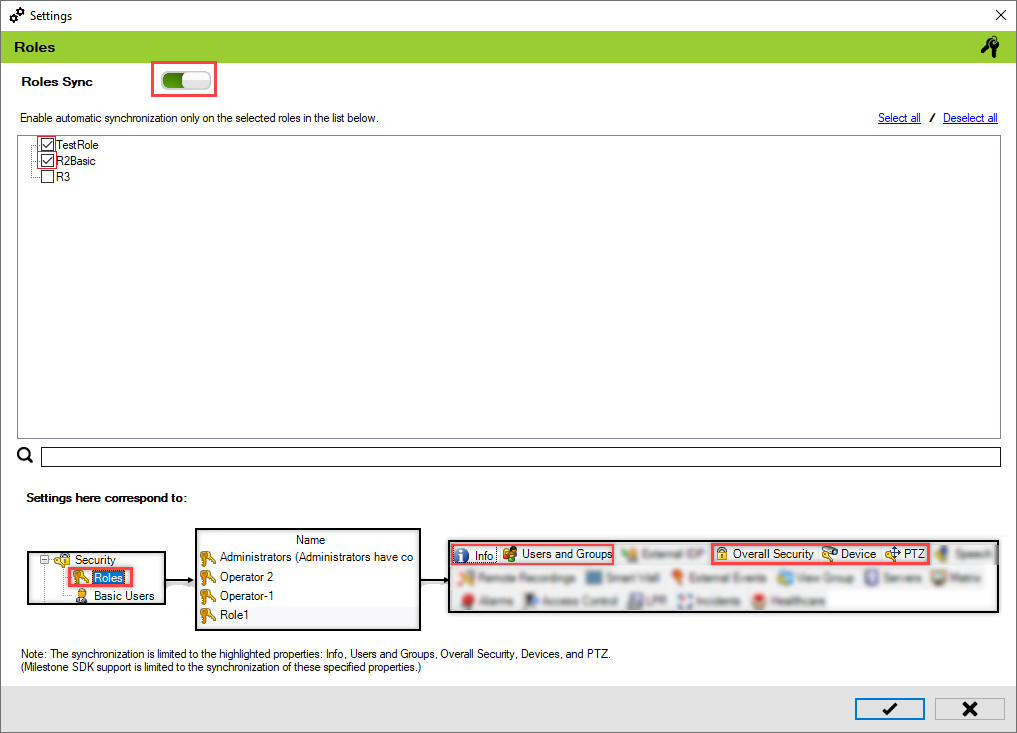
2. Select the roles from the available list to enable automatic synchronization of the selected roles.

<figure><img src="https://content.gitbook.com/content/K95oxUATgzuZZ2VhRoDw/blobs/1jztrJliWDdrpukK7k1t/enable.png" alt=""><figcaption><p>Select Roles</p></figcaption></figure>

{% hint style="info" %}
**Note:** Due to Milestone SDK limitation, synchronization is limited only to the following properties:&#x20;

* Info
* Users and Groups
* Overall Security
* Device
* PTZ
* View Group
  {% endhint %}

{% hint style="danger" %}
**Warning:** Due to MIP SDK/API limitations, selecting each additional role incurs constant performance overhead. For example, if synchronizing one role in a thousand-camera installation takes X minutes, then synchronizing two roles will take 2X minutes. This is true even if the first role manages all the cameras and the second role manages only one. Role synchronization is typically the most time-consuming part of the entire synchronization process. We await improvements to the MIP SDK that will allow the system to fetch only the cameras managed by each role, which should enhance performance.
{% endhint %}

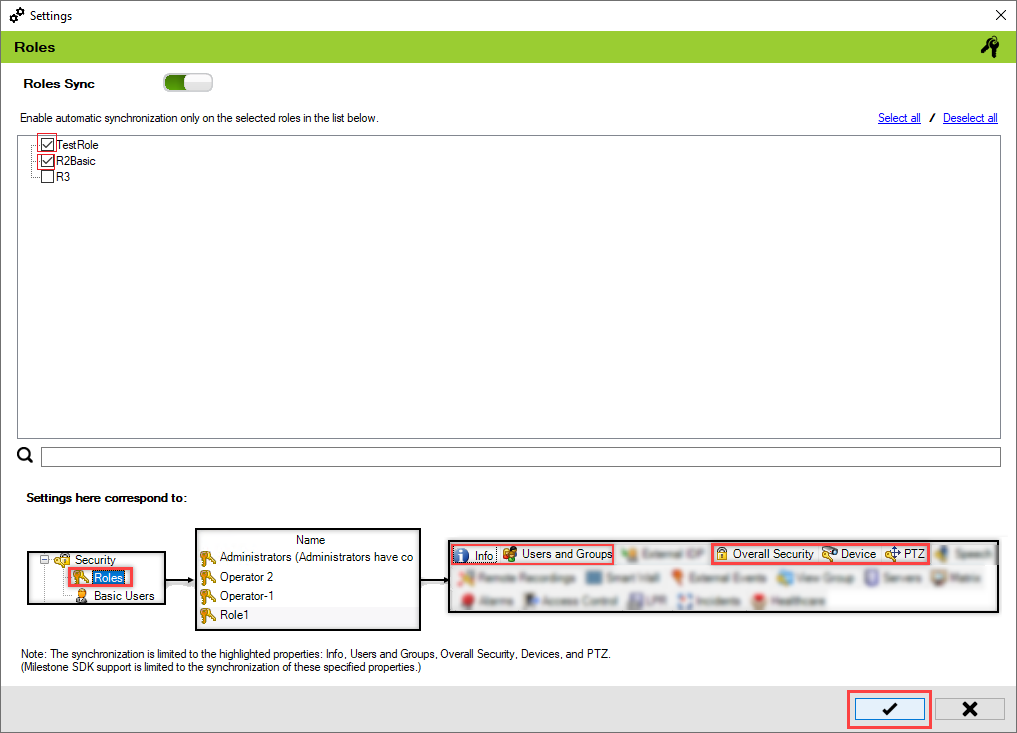
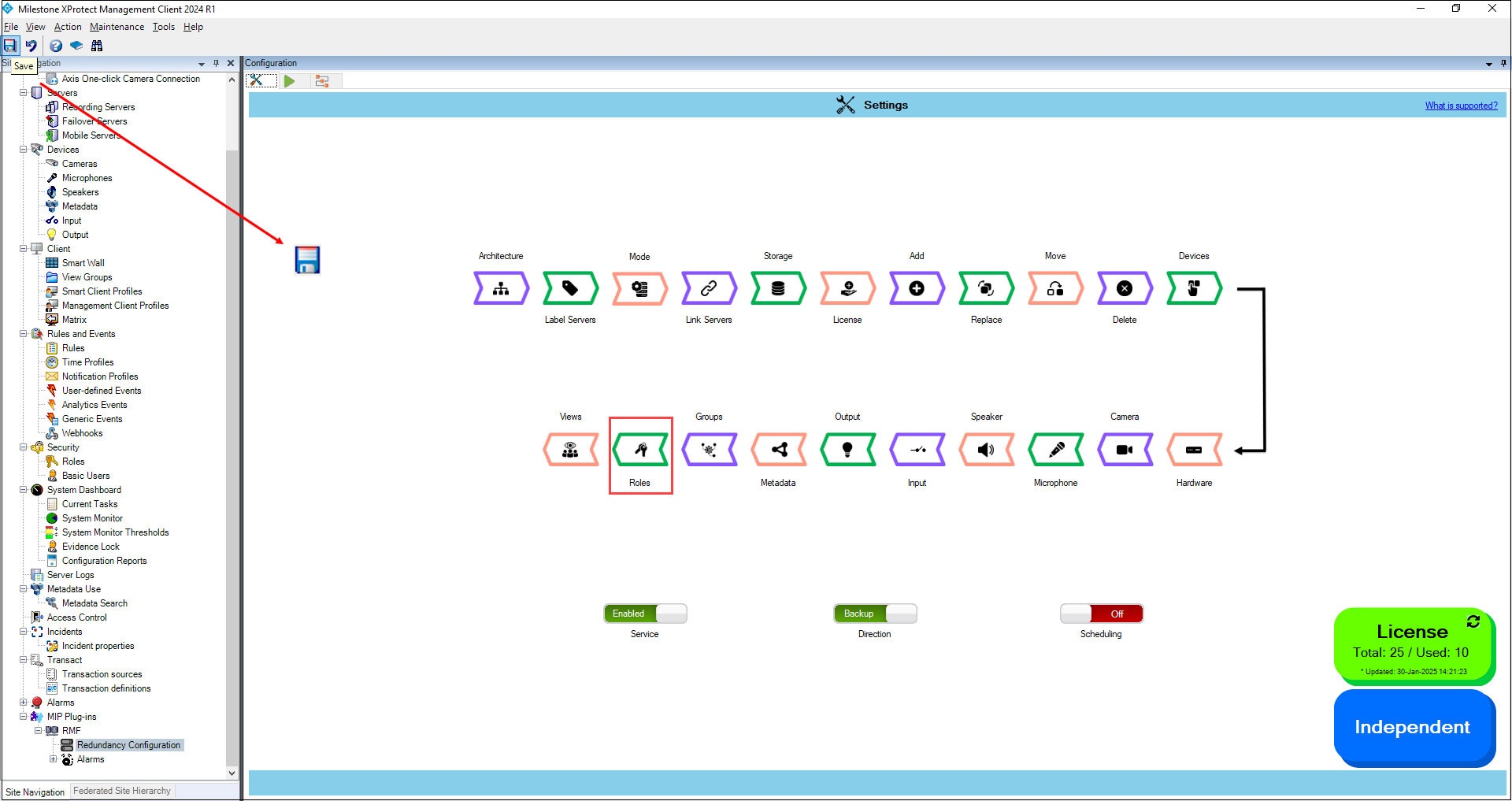
3. Click the **'Save'** button to confirm and continue.

<figure><img src="https://content.gitbook.com/content/K95oxUATgzuZZ2VhRoDw/blobs/Ggo06eslfyZcdBO61woc/Save.png" alt=""><figcaption><p>Save button</p></figcaption></figure>

4. Click **Save** in the Milestone toolbar to save the changes.

<figure><img src="https://content.gitbook.com/content/K95oxUATgzuZZ2VhRoDw/blobs/wd3MFxuKCUYE5ln37sMm/milestone.png" alt=""><figcaption><p>Save Icon—Milestone Toolbar</p></figcaption></figure>

{% hint style="info" %}
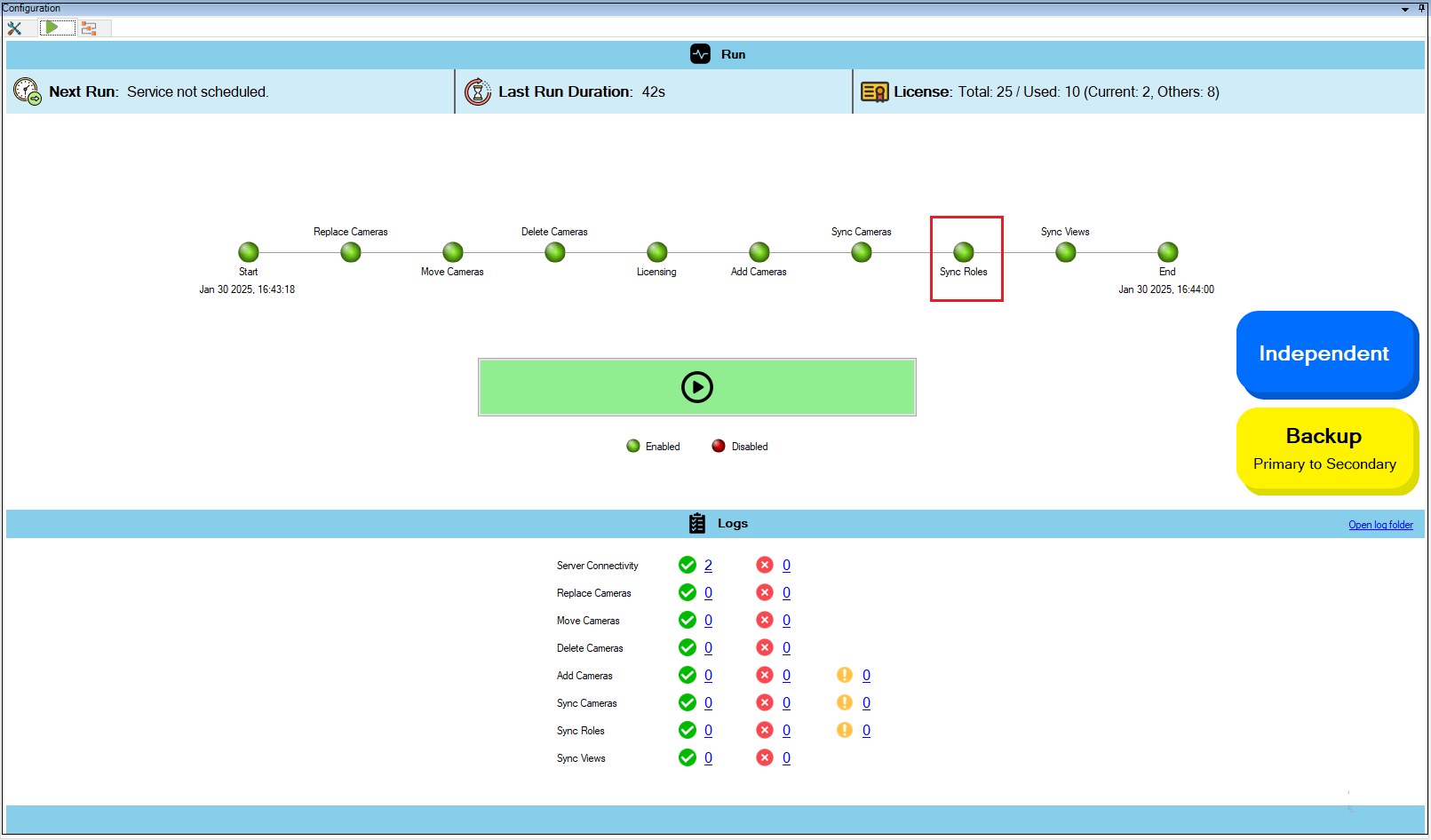
**Note:** The Sync Roles LED is enabled in the run tab.
{% endhint %}

<figure><img src="https://content.gitbook.com/content/K95oxUATgzuZZ2VhRoDw/blobs/K3SCjN3oo3FU3q5mAd2t/Syncroles.png" alt=""><figcaption><p>Synchronize Roles LED is enabled.</p></figcaption></figure>

## Disable

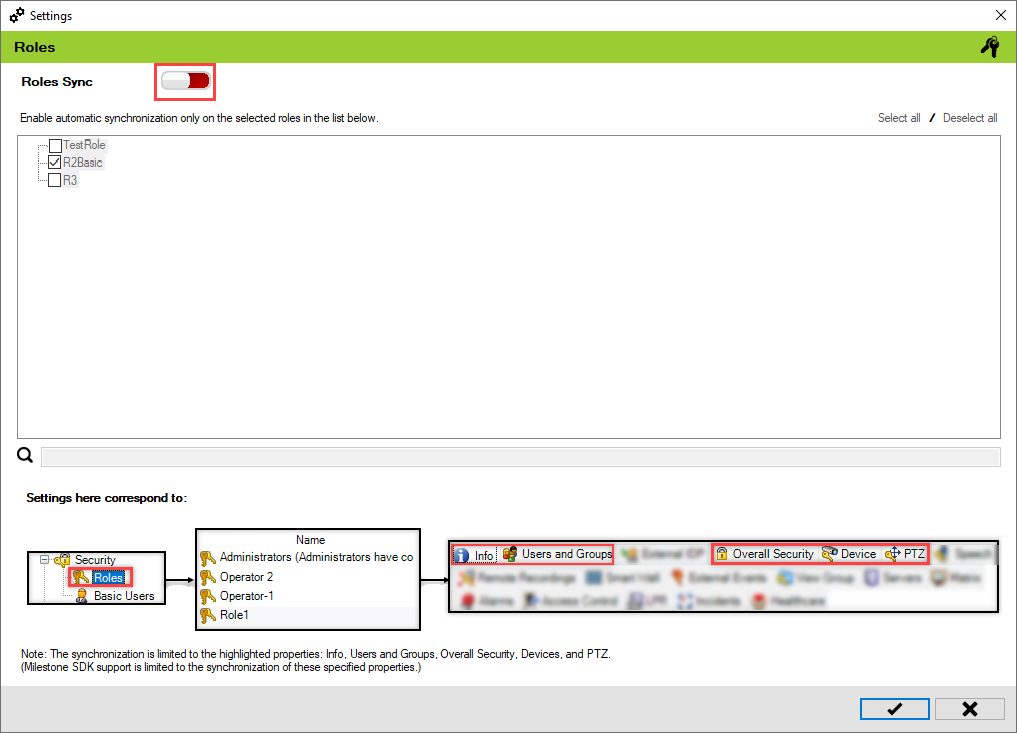
1. Toggle the button to red to turn off overall role synchronization.

{% hint style="success" %}
&#x20; **Step Result:** The roles in the list are grayed out.
{% endhint %}

<figure><img src="https://content.gitbook.com/content/K95oxUATgzuZZ2VhRoDw/blobs/UQoNc2CZdbOyOzXBQtvn/disable.png" alt=""><figcaption><p>Roles Sync Disabled</p></figcaption></figure>

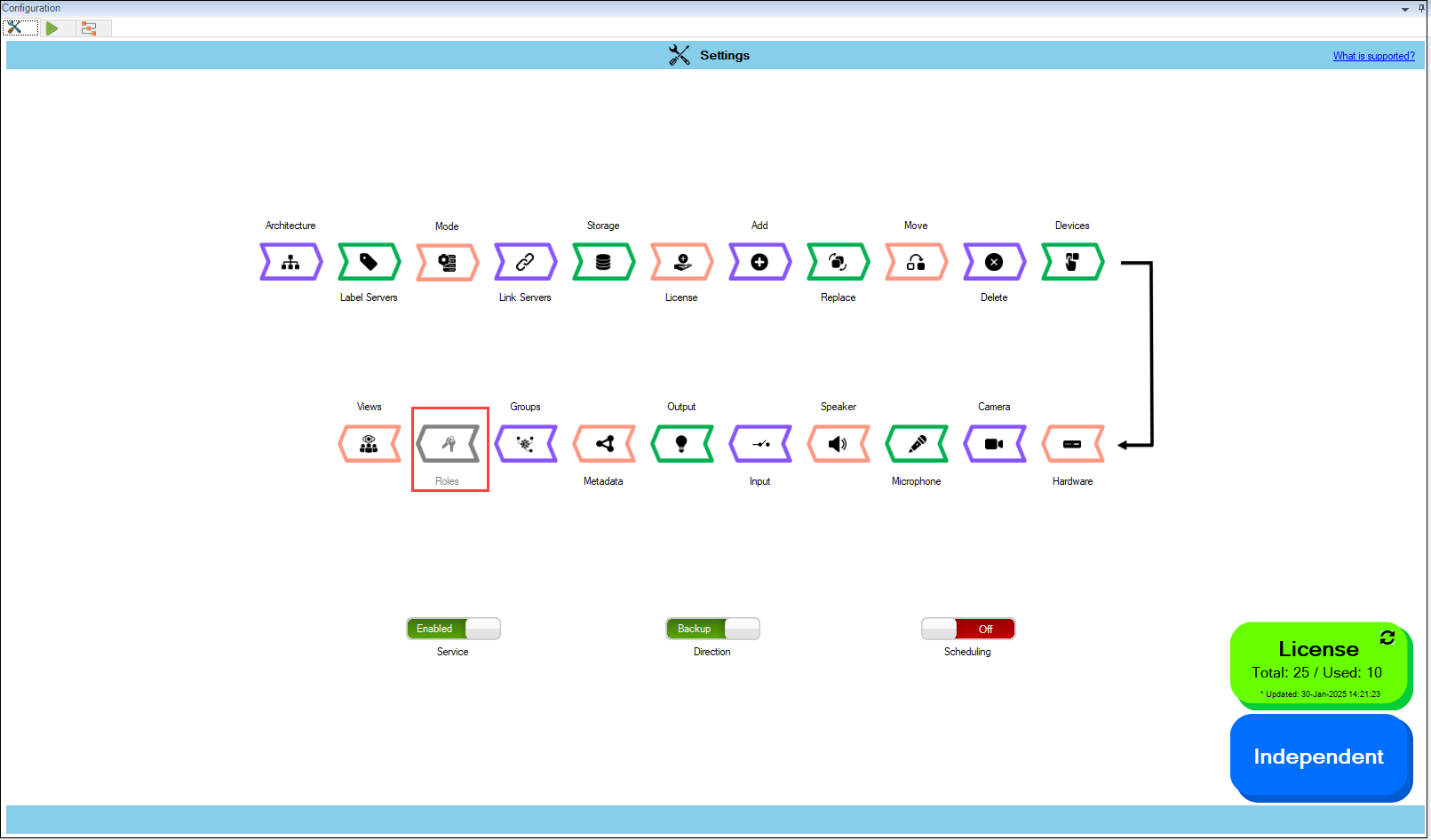
2. Click **Save** in the Milestone toolbar to save the changes.

<figure><img src="https://content.gitbook.com/content/K95oxUATgzuZZ2VhRoDw/blobs/wd3MFxuKCUYE5ln37sMm/milestone.png" alt=""><figcaption><p>Save Icon—Milestone Toolbar</p></figcaption></figure>

<figure><img src="https://content.gitbook.com/content/K95oxUATgzuZZ2VhRoDw/blobs/N5wJdh25y5pheq9StLI4/Disabled.png" alt=""><figcaption><p>Roles Option Disabled</p></figcaption></figure>