> For the complete documentation index, see [llms.txt](https://docs.vega365.com/llms.txt). Markdown versions of documentation pages are available by appending `.md` to page URLs; this page is available as [Markdown](https://docs.vega365.com/redundancy-management-framework/user-manual/installation/post-installation/validate-the-installation-of-rmf-services-and-ui.md).
# Validate the Installation of RMF Services and UI
Post-Installation procedure of RMF Services and UI
Perform the following post-installation steps to verify that the RMF Services and UI are successfully installed.
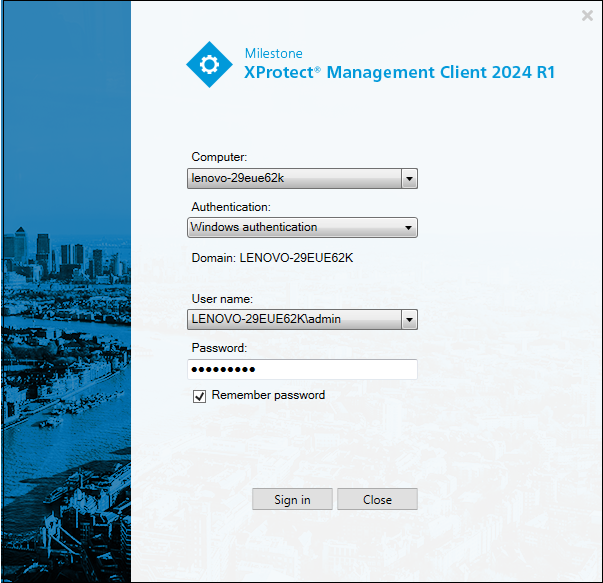
1. Launch the XProtect Management Client **on the machine where the RMF Services are installed** and sign in to the application.
Milestone XProtect Management Client Login
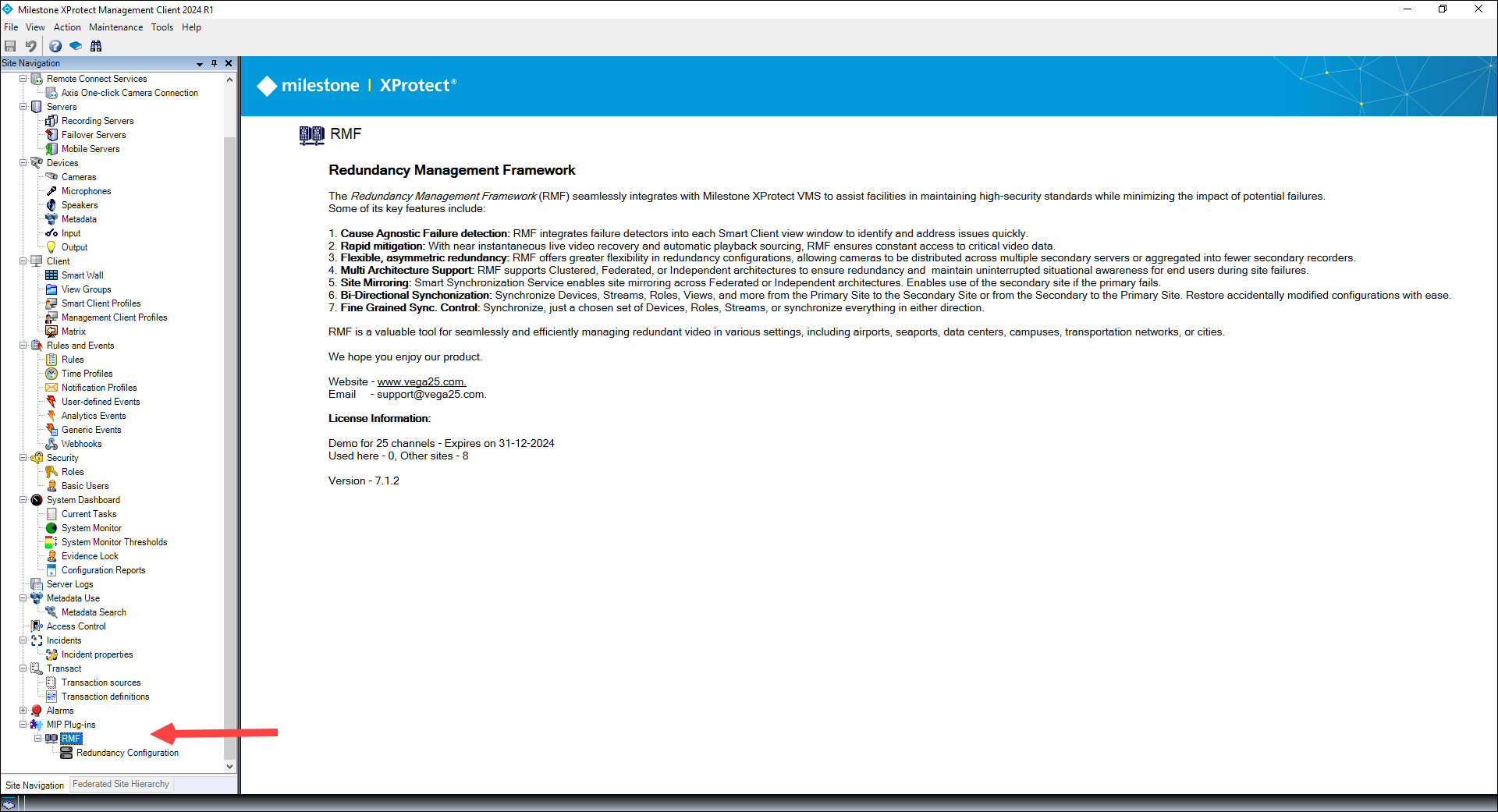
2. After signing in, verify that the RMF is visible in the screen's bottom left corner under the MIP Plugins tree view.
Milestone XProtect MIP Plugin—RMF
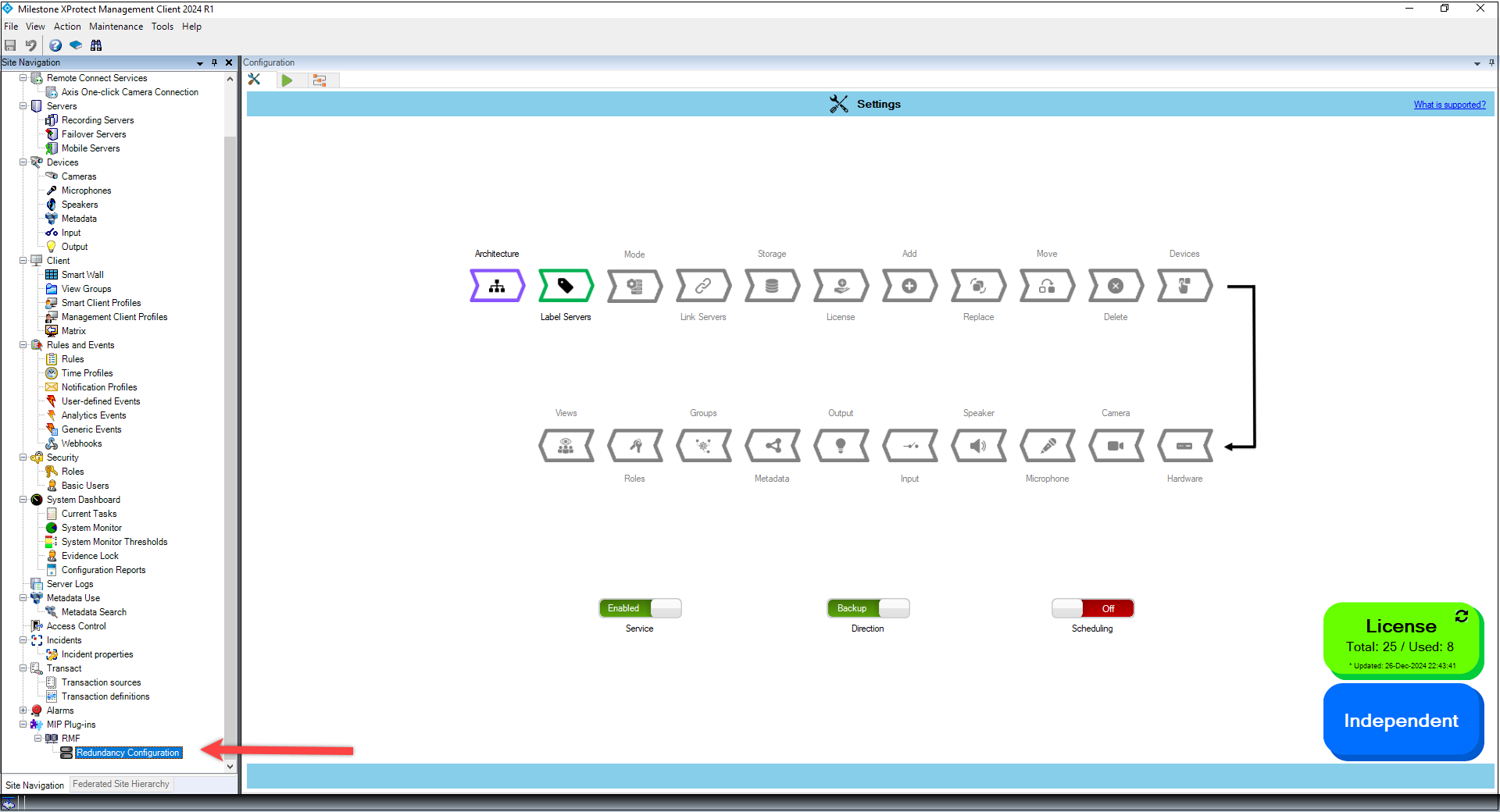
3. Expand the RMF Expand button to view the **Redundancy Configuration**.