> For the complete documentation index, see [llms.txt](https://docs.vega365.com/llms.txt). Markdown versions of documentation pages are available by appending `.md` to page URLs; this page is available as [Markdown](https://docs.vega365.com/redundancy-management-framework/user-manual/licensing/offline-activation/export-license-for-activation.md).
# Export License for Activation
Follow the steps to export license for activation.
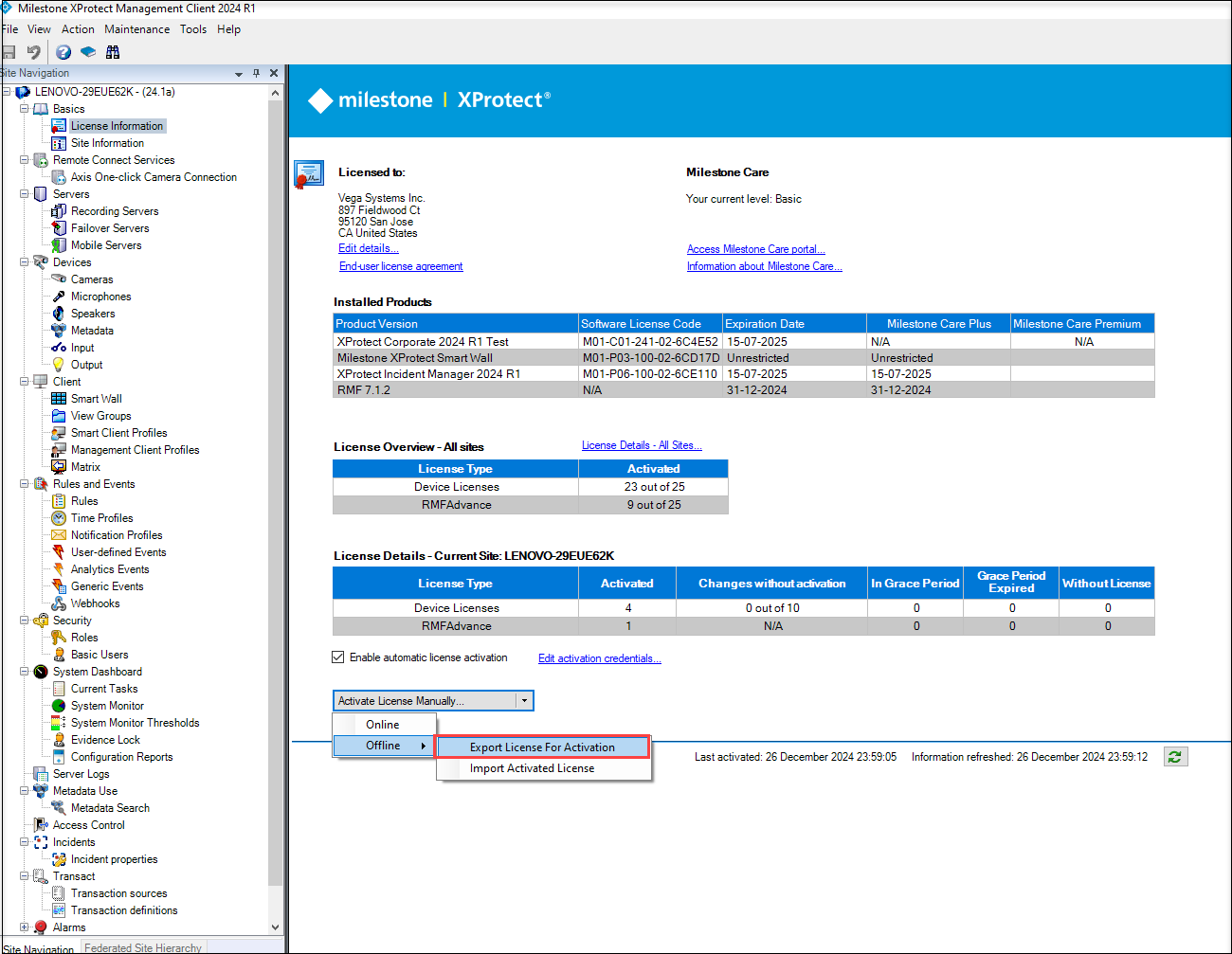
Perform the following steps to export the license for activation:
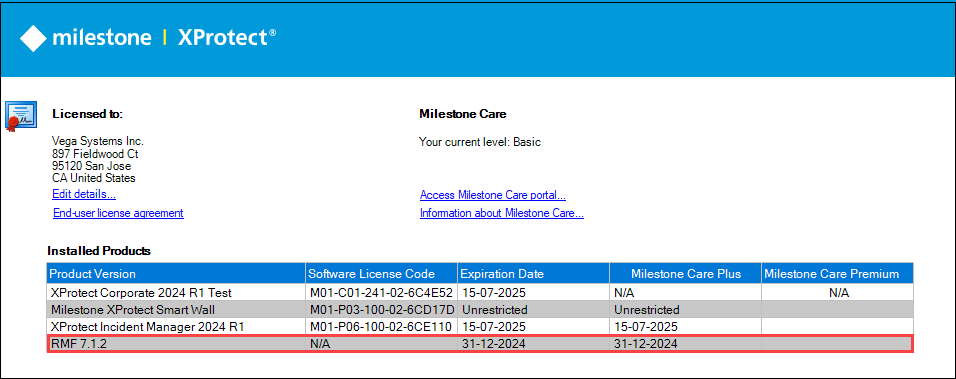
1. Ensure the RMF is visible under the **Installed Products** section.
{% hint style="success" %}
**Step Result:** The following screen appears.
{% endhint %}
License Request File (lrq)
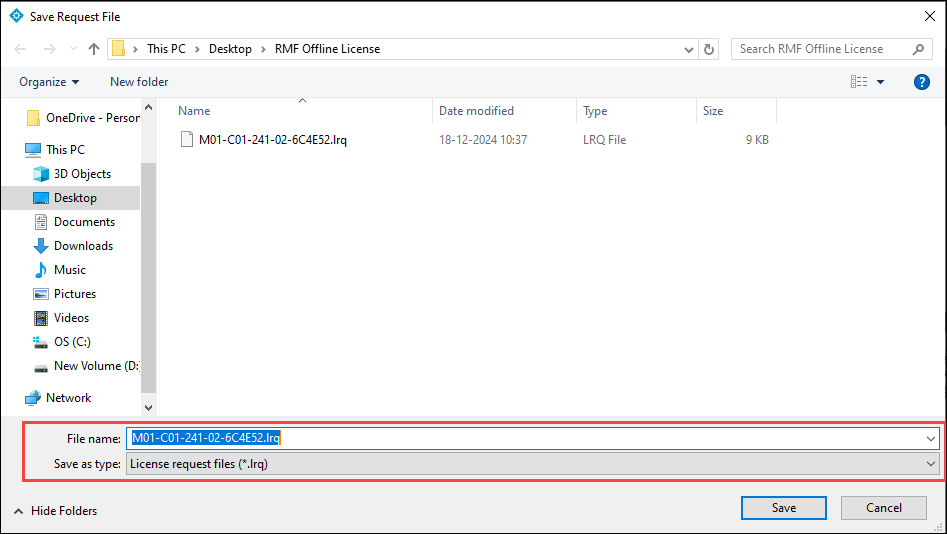
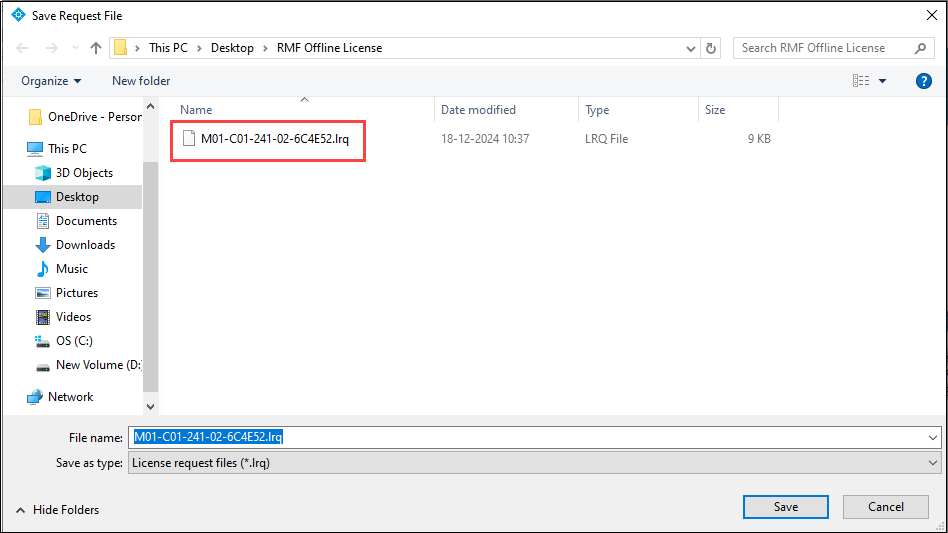
4. Save the License Request File (.Irq) to a location on the local drive.
Save License Request File
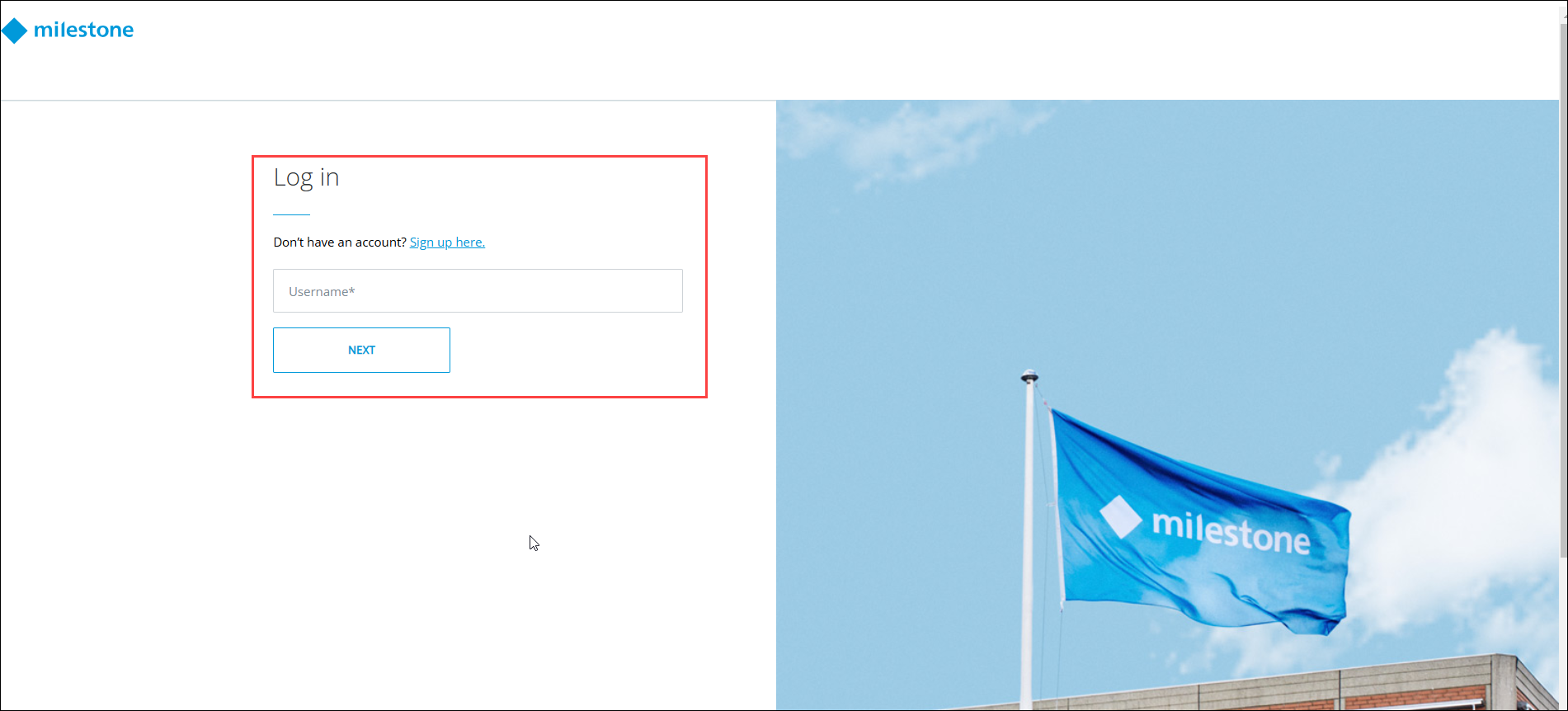
5. Log in to your **Milestone Customer Dashboard** portal.
Milestone Customer Dashboard Login Screen
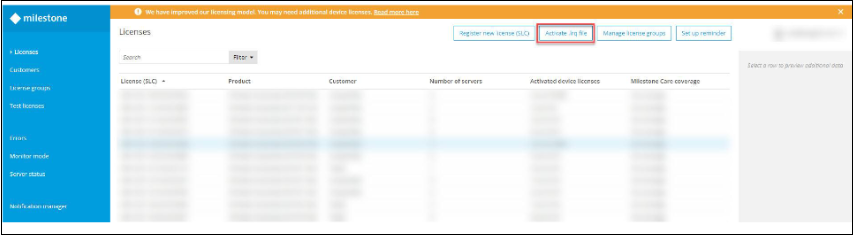
6. Click the **Activate.Irq** file tab in the portal.
Activate .lrq file tab
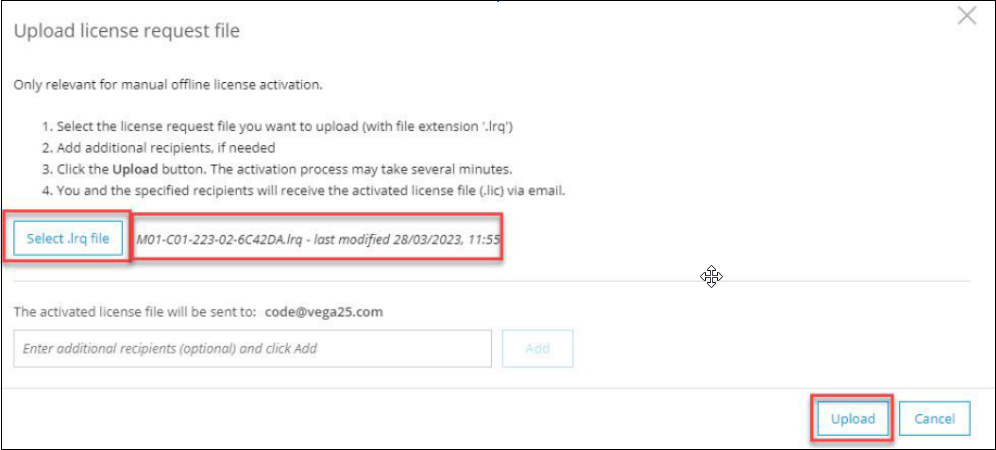
7. Click the '**Select .Irq'** file button, select the exported '**.Irq'** file from the saved path, and click **Upload**.
Upload the .lrq file
8. Wait for Milestone to email the activated file to you.
9. Then follow the steps in [Import Activated License](https://docs.vega365.com/redundancy-management-framework/user-manual/licensing/offline-activation/import-activated-license.md)to activate RMF Licenses.